How to Add Team Members to CXWizard
Guide on how to add team members to your CXWizard account
CXWizard lets you invite teammates so members of your team can collaborate on your account and respond to customers.
Roles
When you invite someone to your CXWizard account, you assign them one of two roles.
Support role
Team members with the Support role can:
- View conversations in your Inbox
- Reply to customers and handle ongoing chats
They cannot access other areas of your dashboard (agents, knowledge base, marketing, etc.).
Admin role
Team members with the Admin role can:
- View and manage resources like agents, documents, chats, and marketing campaigns
Admin team members cannot:
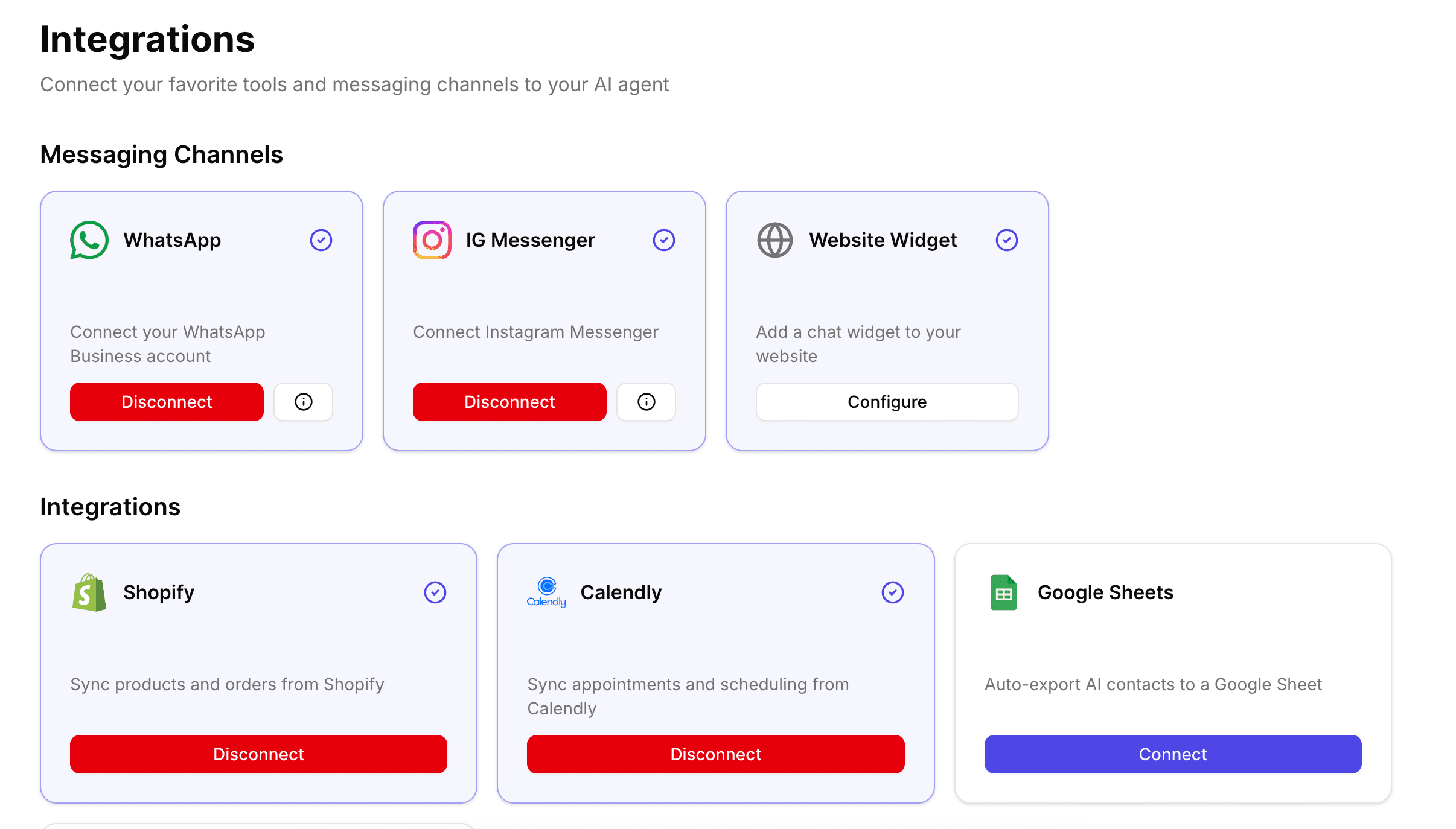
- Connect or disconnect integrations
- Configure the web chat widget
Only the business owner can manage integrations and the website widget.
Step 1: Invite a team member
- Go to your Teams page
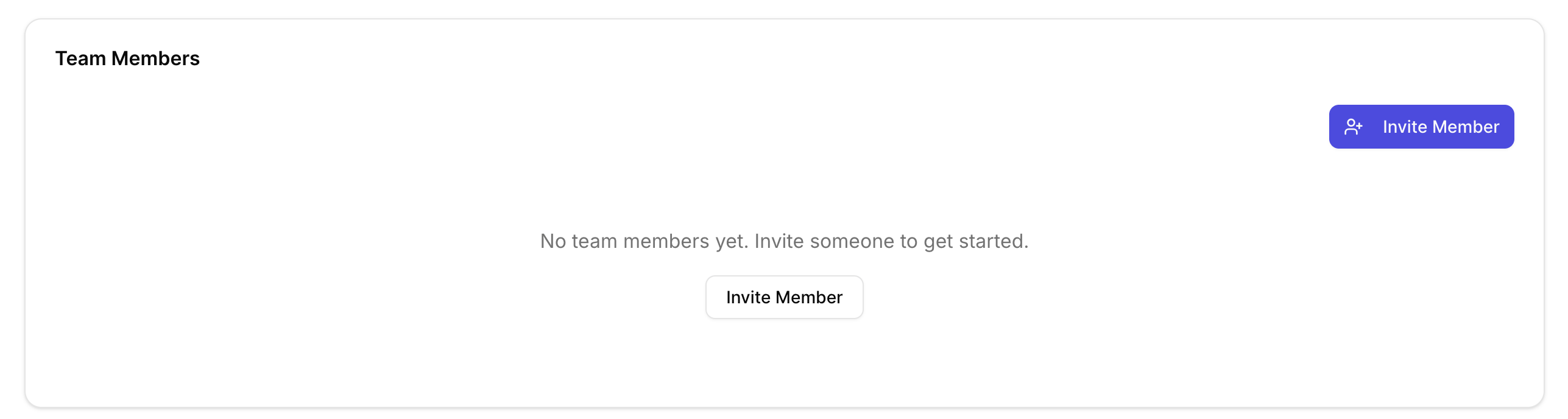
- Click Invite Member
- Enter your teammate’s email address
- Choose the role you want to grant (Support or Admin)
- Send the invite
When your teammate receives the invitation, they must create a CXWizard account using the same email address to accept the invite.
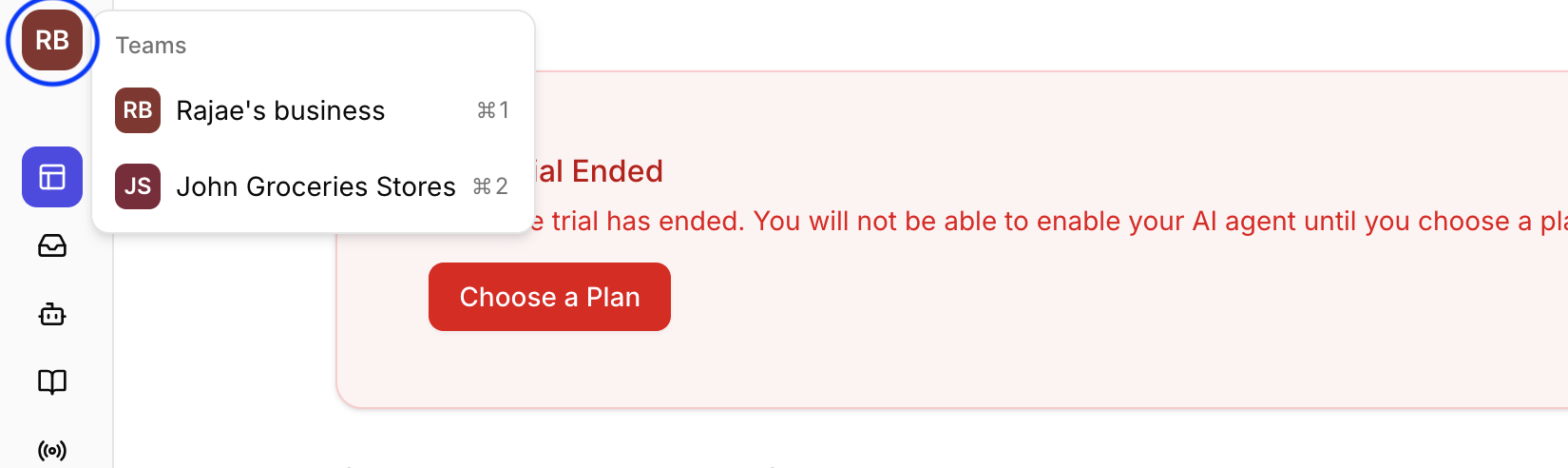
Step 2: Switching businesses in the dashboard
If you were invited to a business (or you belong to multiple businesses), you can switch between them directly from your dashboard. This is useful when you collaborate across multiple brands or locations.
Look for the business switcher in your dashboard UI and select the business you want to work in. Your inbox, agents, and other data will update based on the selected business.
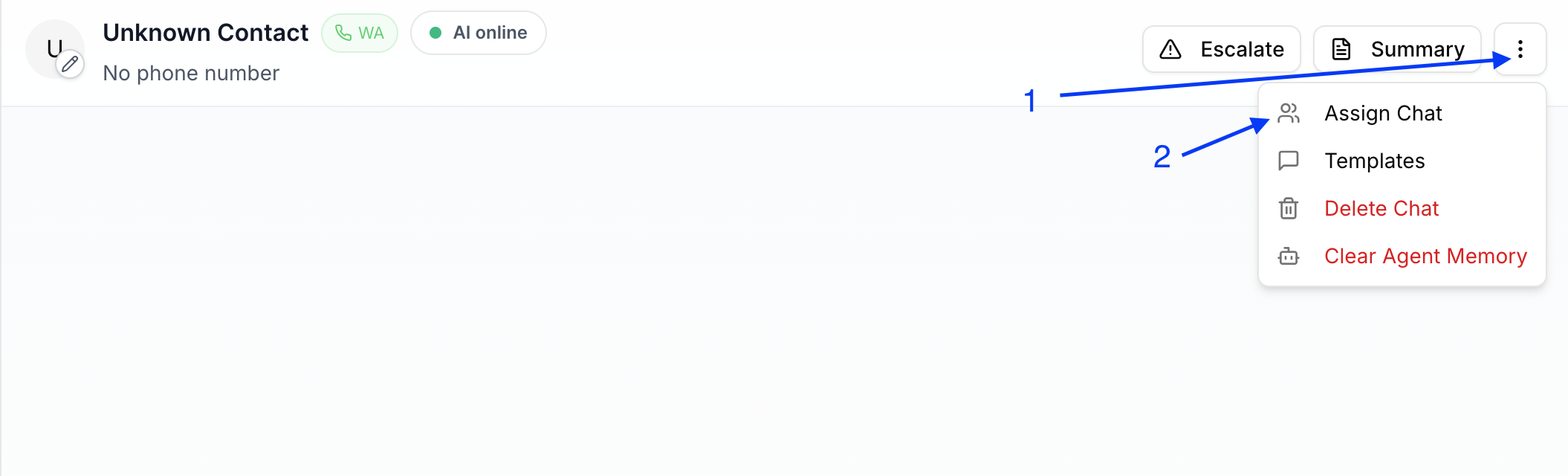
Step 3: Assign a chat to a team member
CXWizard allows you to assign a conversation to another teammate so it is clear who is handling it.
- Open your Inbox
- Open the conversation you want to assign
- In the conversation header, click the three vertical dots (more options)
- Select Assign Chat
- Choose the teammate to assign it to
Troubleshooting
The invited teammate can’t accept the invite
- Make sure they created a CXWizard account with the exact email that received the invitation.
A teammate says they can’t access something
- Confirm the role you assigned (Support vs Admin).
- Remember: integrations and the web chat widget can only be managed by the owner.