How to Connect Google Sheets to CXWizard
Step-by-step guide to export AI-collected contacts from WhatsApp, Instagram, and web chat into Google Sheets with column mapping and auto-updates.
Connecting Google Sheets lets CXWizard auto-export AI-collected contacts into a spreadsheet your team already uses. When a customer starts chatting on WhatsApp, Instagram, or web chat, a new row is added. As the AI collects a name, email, or phone number, or you edit the contact, the matching row updates.
CXWizard only syncs contacts created by your AI (not manually created or imported contacts). You need to be a business owner in CXWizard to connect and configure the integration.
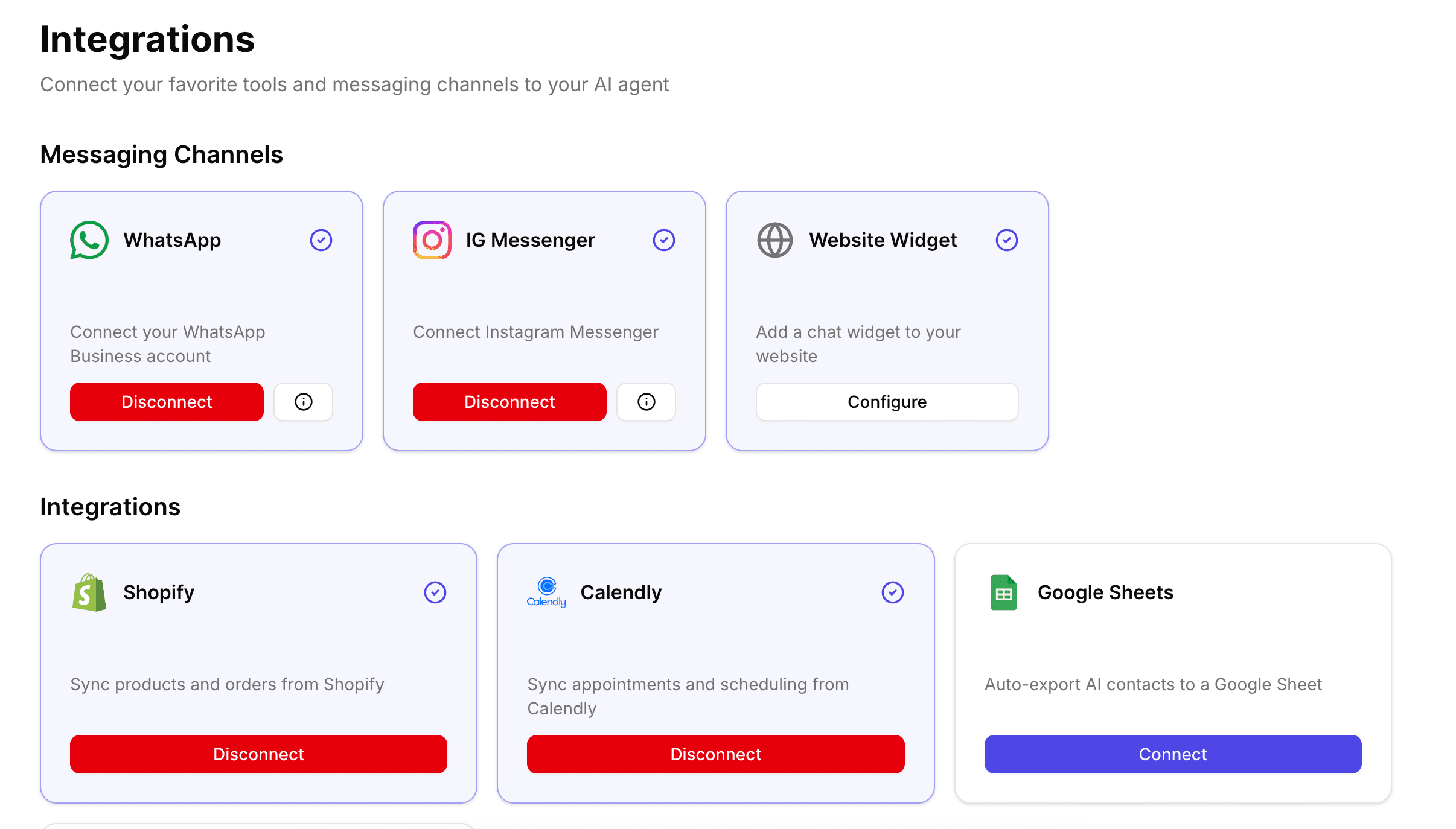
Open the Integrations page to get started.
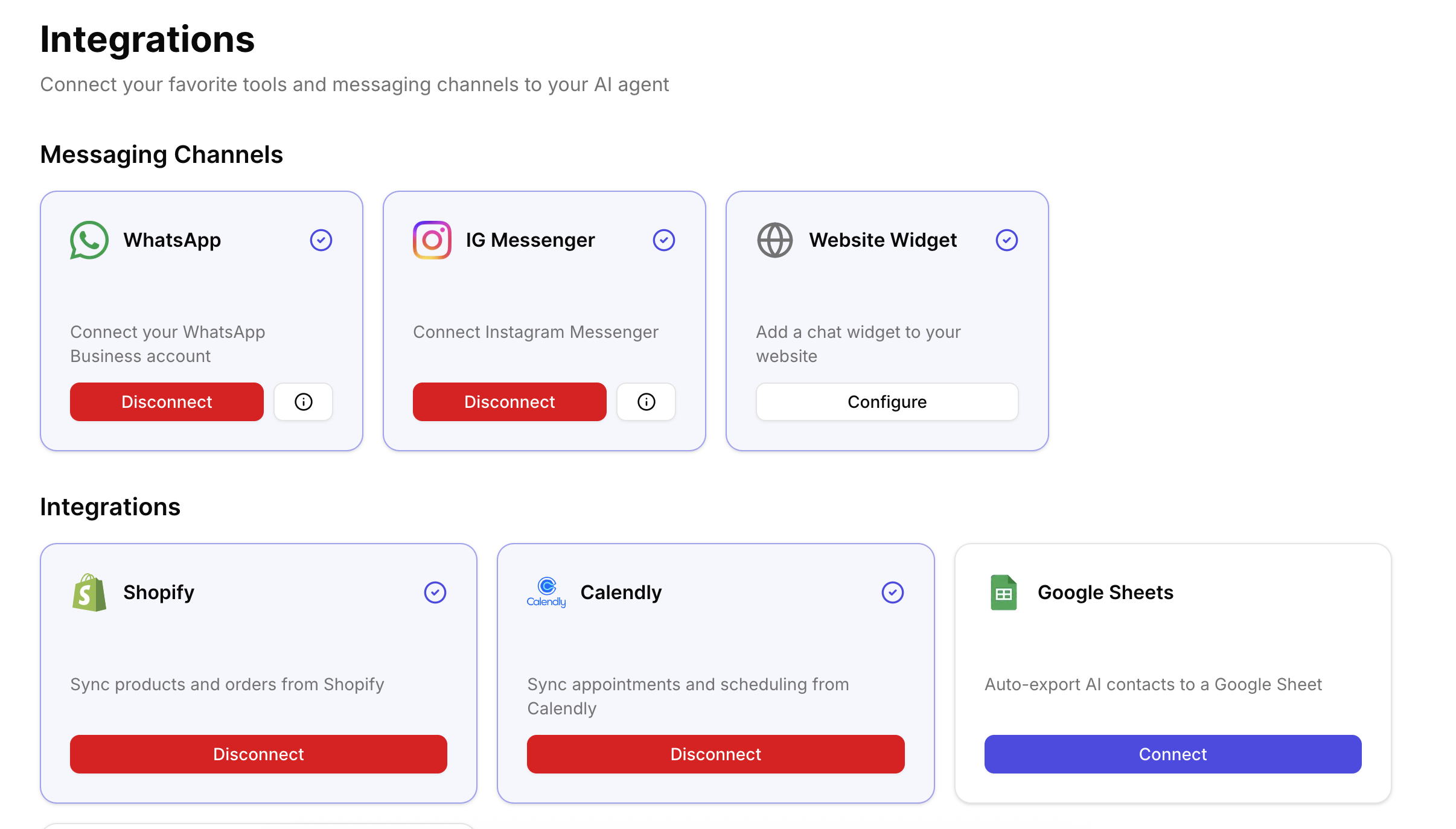
Step 1: Open Google Sheets and connect with Google
On the Integrations page, find Google Sheets under Integrations and click Connect.
You’ll land on the connect screen, which explains how sync works:
- New AI leads are appended as rows
- Existing rows update as contact details arrive
- You can map to your own headers or start from a blank sheet
Click Connect with Google Sheets and approve access for your Google account.
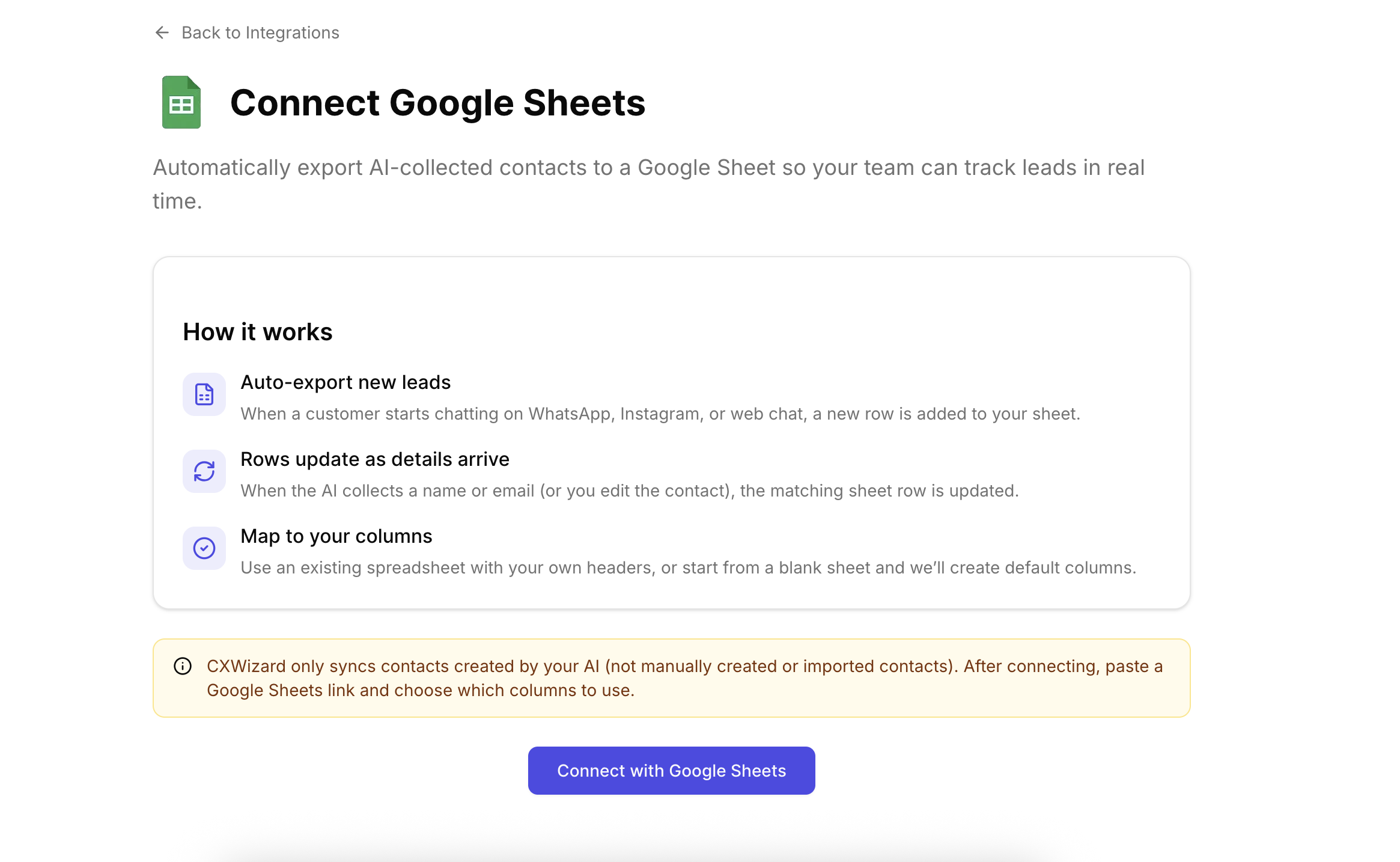
CXWizard requests access to Google Sheets so it can read headers and write contact rows. It does not ask for access to your entire Google Drive. You’ll paste a specific spreadsheet link in the next step.
Step 2: Paste your spreadsheet URL and choose a worksheet
After Google connects, open Google Sheets settings.
- In Google Sheets, open the spreadsheet you want to use and copy the URL from your browser.
- Paste that URL into the Spreadsheet field in CXWizard.
- Click Use this spreadsheet.
- Select the Worksheet tab where contacts should be written (for example,
Sheet 1).
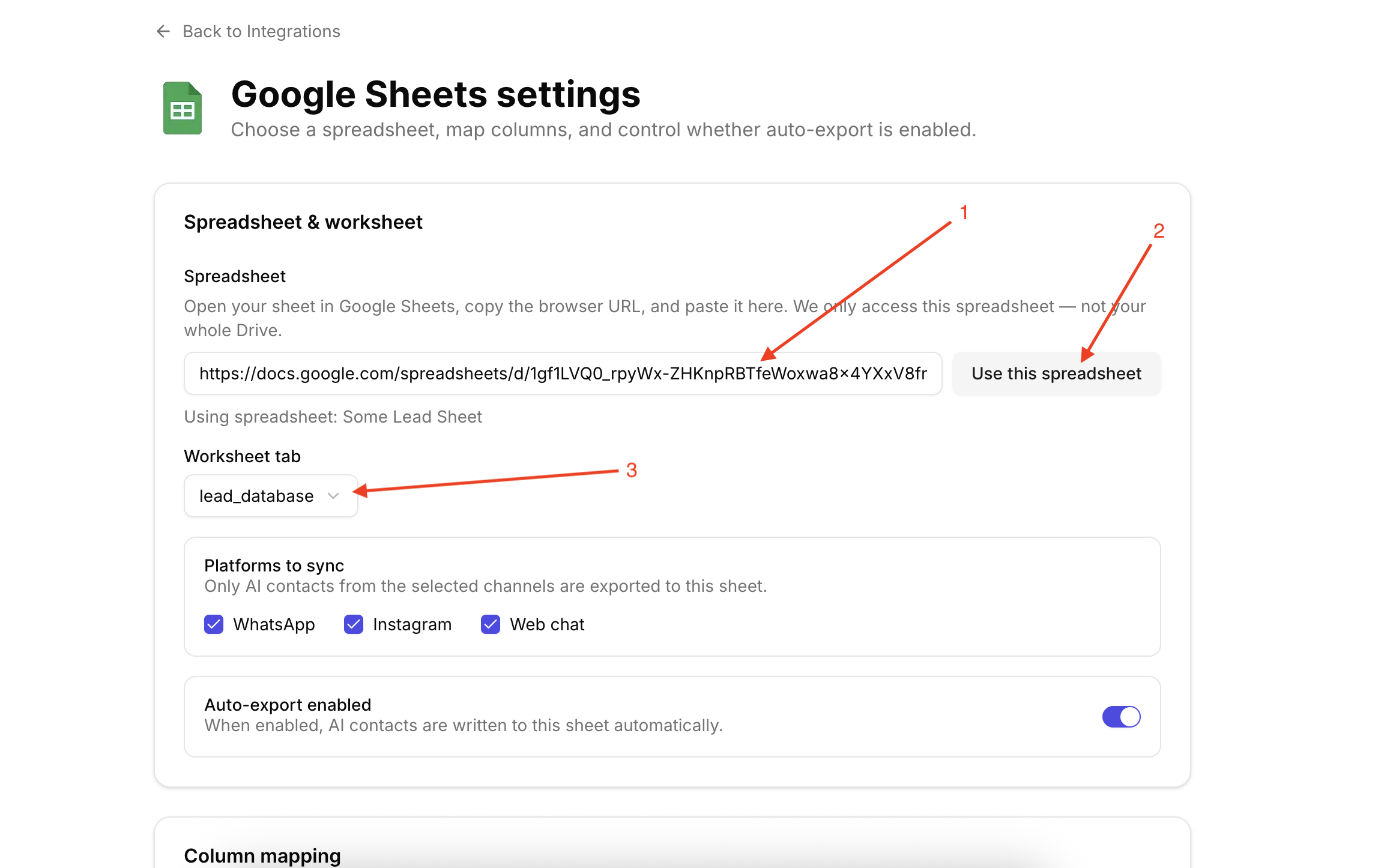
Then configure:
- Platforms to sync: choose WhatsApp, Instagram, and/or Web chat. Only AI contacts from selected channels are exported.
- Auto-export enabled: turn this on so new and updated contacts sync automatically.
Tip: Prefer a sheet dedicated to CXWizard leads, or a dedicated tab, so marketing or ops data stays separate.
Step 3: Map columns (Contact ID is required)
If your worksheet already has headers, CXWizard shows Column mapping. Match each CXWizard contact field to a column in your sheet.
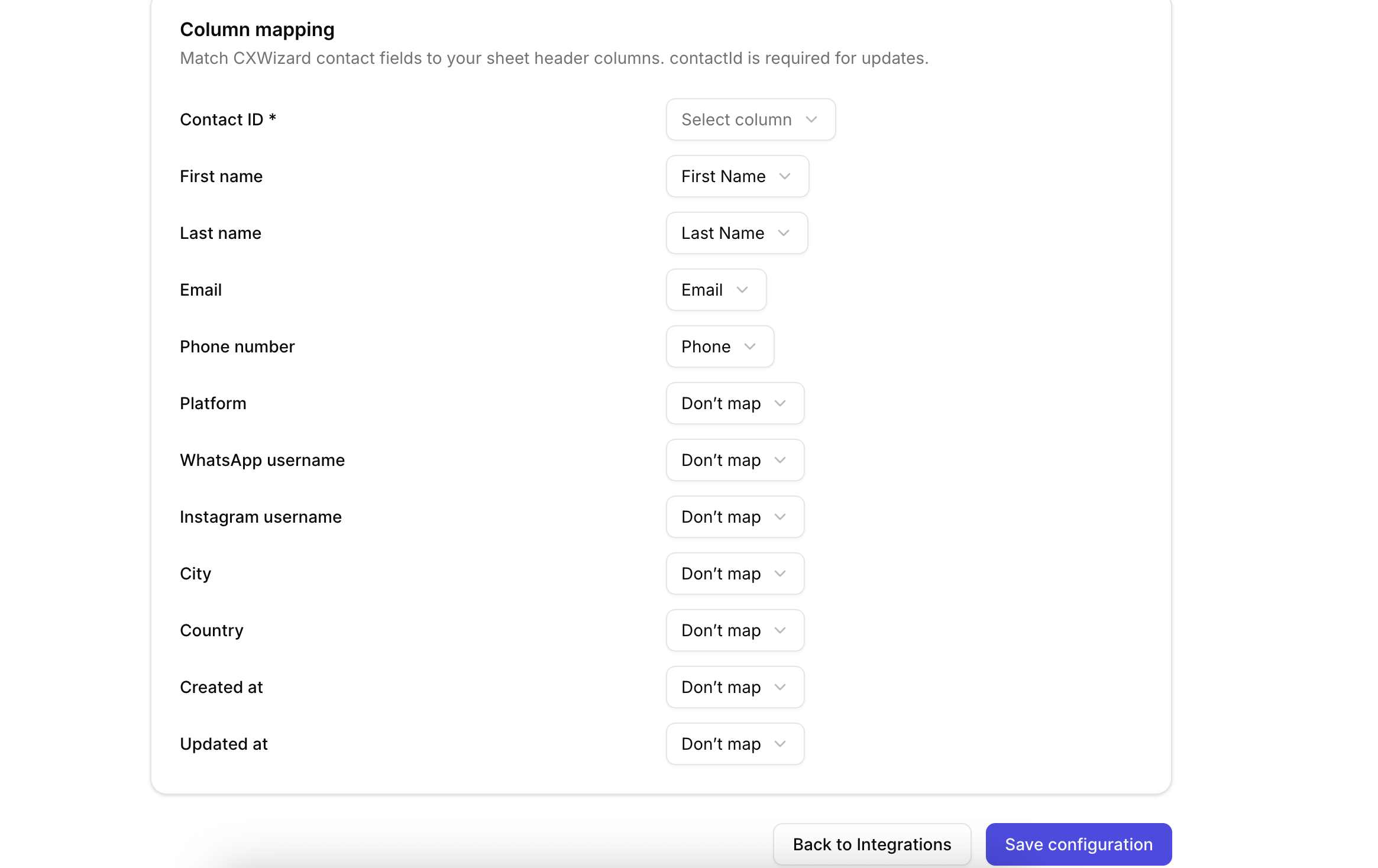
Contact ID is required. CXWizard uses it as the lookup key when updating an existing row. Options:
- Map it to an existing ID column in your sheet, or
- Add a new header in Google Sheets (for example,
CXWiz Contact ID), then map Contact ID to that column
Common fields like First name, Last name, Email, and Phone are often suggested automatically when your headers match. Leave unused fields as Don’t map.
If the worksheet is blank, CXWizard writes default headers (including contactId) when you save, so no manual mapping is needed.
Click Save configuration when you’re done.
Tip: When syncing WhatsApp contact information, create a new field in your spreadsheet to map WhatsApp username so that you can always have a name for each phone number. When a conversation just starts firstname and lastname would not be present on a contact until the AI collects it from the customer.
What happens after you save
With auto-export enabled:
- A customer messages you on a synced channel.
- Your AI agent creates a contact → CXWizard appends a row to your sheet.
- When more details are collected (or you edit the contact), CXWizard finds the row by Contact ID and updates it.
You can change the spreadsheet, worksheet, platforms, mappings, or turn auto-export off anytime from Integrations → Google Sheets → Configure.
Troubleshooting
| Issue | What to try |
|---|---|
| Can’t connect Google | Reconnect from the Google Sheets page and complete Google’s consent screen. Use the same Google account that owns or can edit the spreadsheet. |
| Spreadsheet not found | Paste the full Sheets URL, click Use this spreadsheet, and confirm your Google account has edit access. |
| Save blocked on Contact ID | Map Contact ID to a header column, or use a blank sheet so defaults are created. |
| Rows not appearing | Confirm auto-export is on, the contact was created by AI (not imported), and the contact’s platform is checked under Platforms to sync. |