How to Migrate Your WhatsApp Business Account to CXWizard
Transfer your WhatsApp Business phone number from another WhatsApp Business API provider to CXWizard. Disable two-step verification in Meta Business Manager, then reconnect through CXWizard.
If your WhatsApp Business number is already registered with another WhatsApp Business API provider (BSP), you can move it to CXWizard and keep using the same number with CXWizard’s AI agents, shared inbox, and campaigns.
This guide covers the usual migration path: confirm Meta admin access, turn off two-step verification on the number, then connect the account in CXWizard.
Before you start
Make sure you have:
- Admin access to the Meta Business Portfolio that owns the WhatsApp Business account
- Admin access to the WhatsApp Business account itself
- Login access to the Facebook account you used when the WhatsApp Business account was created
- Access to your CXWizard workspace
If your number is still actively connected through another provider, finish any outstanding work there first and follow that provider’s disconnect or release process when required. A phone number can only be connected through one WhatsApp Business API solution at a time.
Step 1: Confirm admin access in Meta
- Log in with the Facebook account you used to create the WhatsApp Business account.
- Open Meta Business Suite and confirm you can manage the correct Business Portfolio.
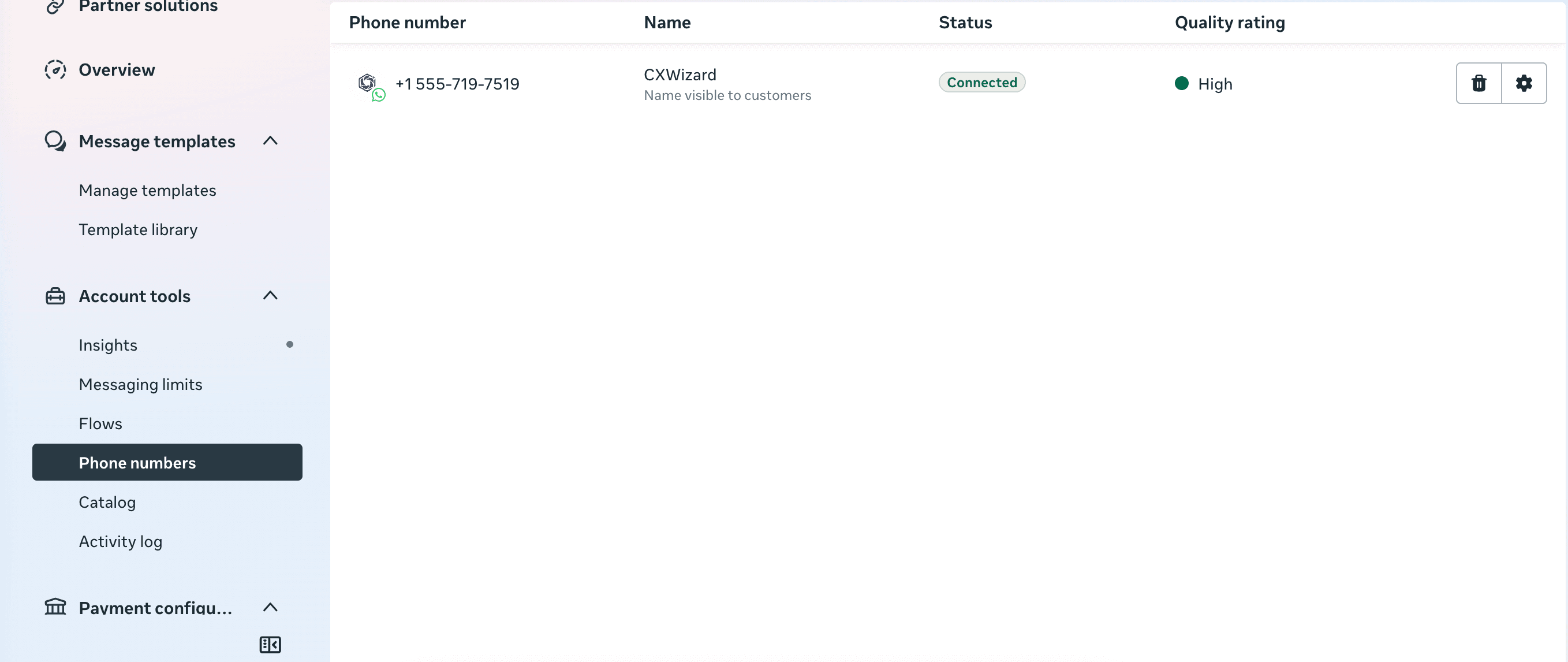
- Confirm you can open WhatsApp Manager for that portfolio and see your phone number under Phone numbers.
If you cannot see the WhatsApp Business account or phone number, ask a portfolio admin to grant you admin access before continuing.
Step 2: Turn off two-step verification
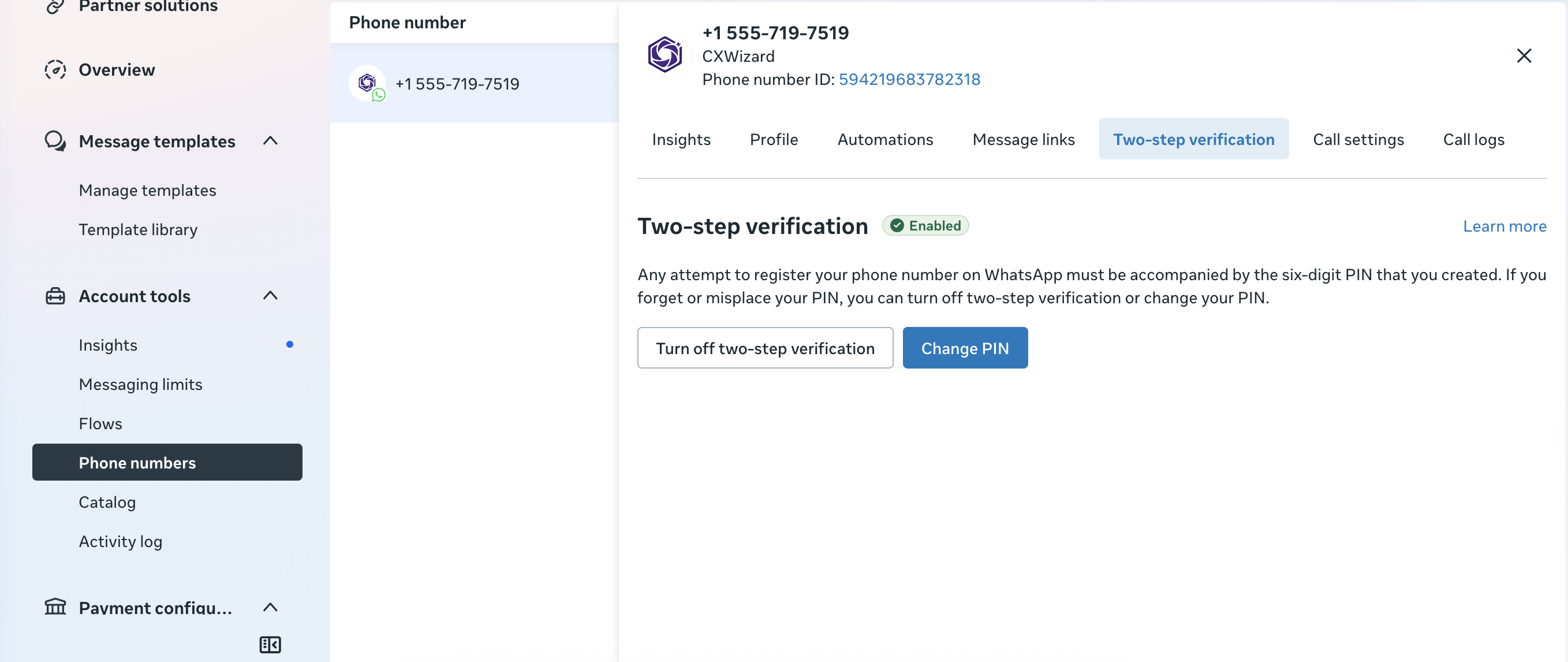
Meta requires two-step verification to be turned off before you can migrate or re-register the number with a new provider.
- Open WhatsApp Manager → Phone numbers.
- Click your phone number in the list.
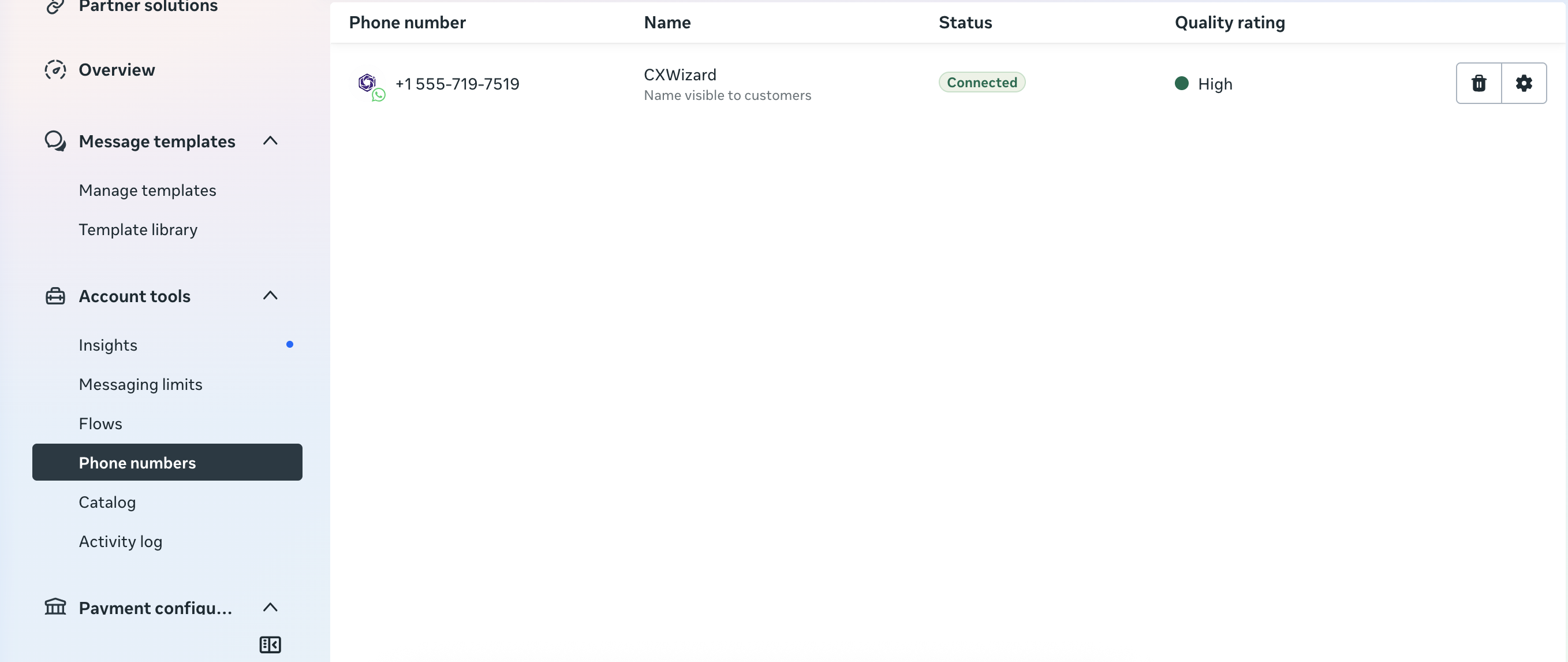
- Open the Two-step verification tab.
- Click Turn off two-step verification and complete the confirmation steps.
You can turn two-step verification back on after the migration is complete. Keeping it enabled afterward is a good security practice.
Step 3: Connect WhatsApp in CXWizard
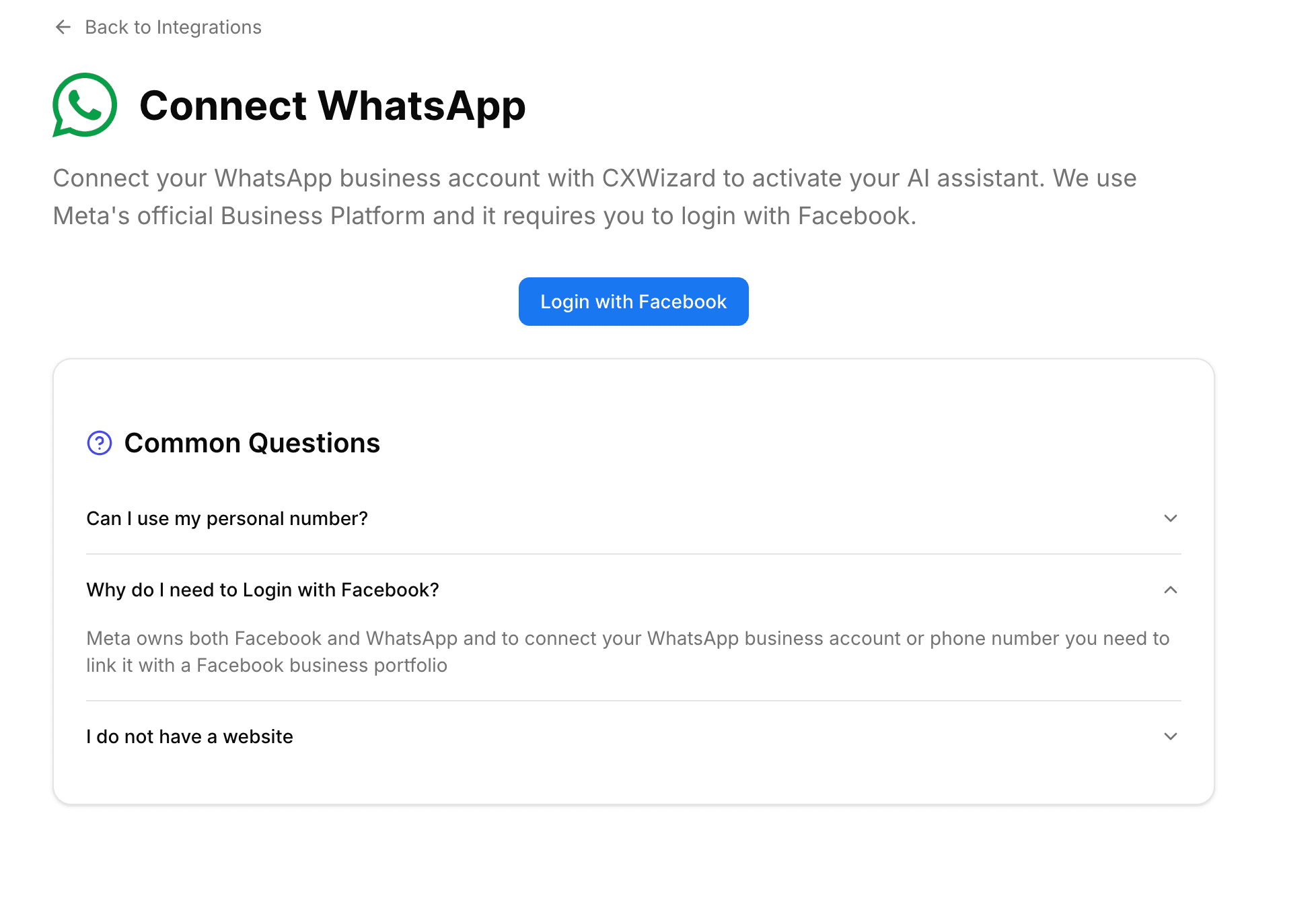
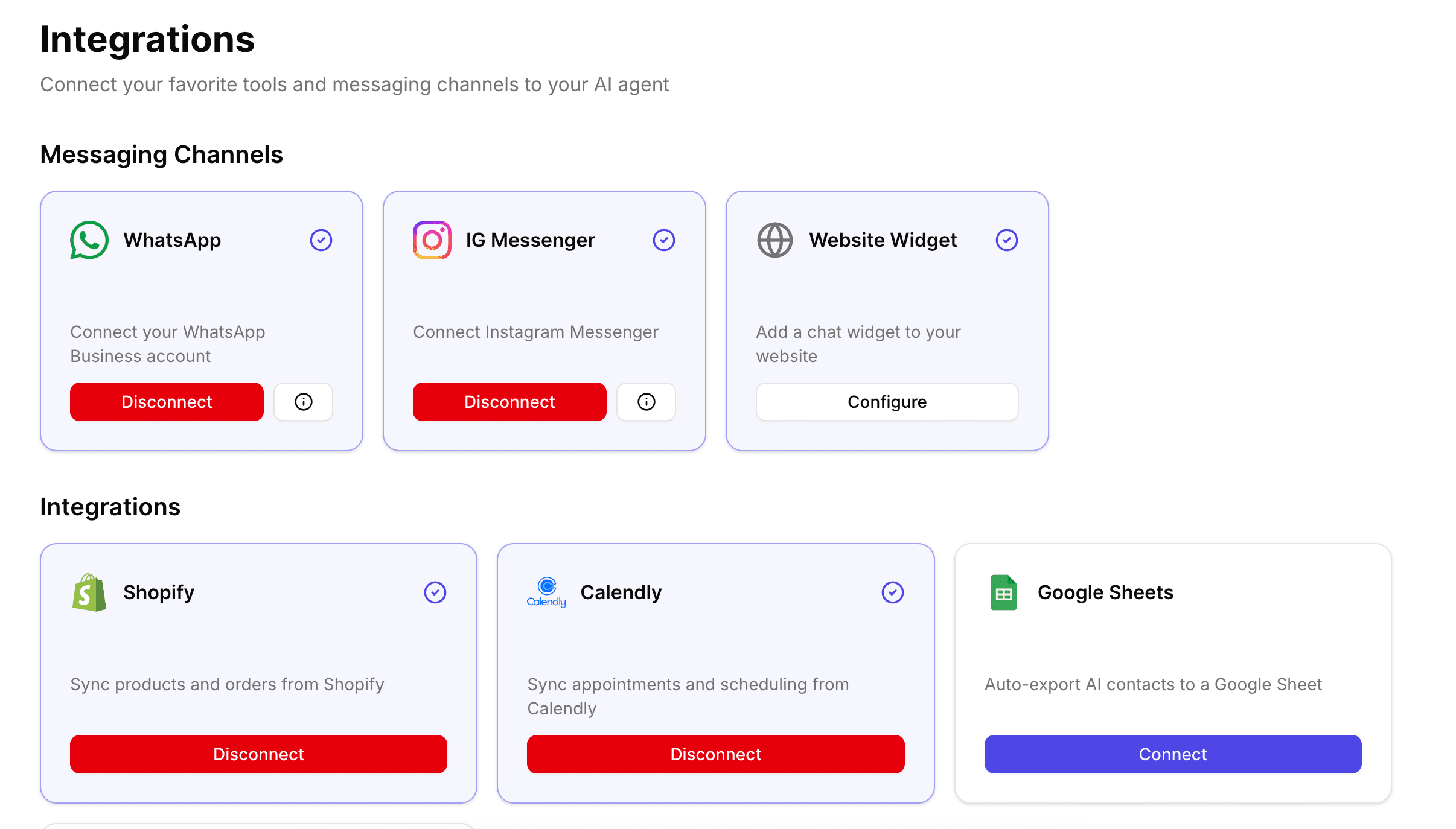
- Sign in to CXWizard and open the WhatsApp Integration page.
- Start the Meta connection flow and select the same Business Portfolio that owns your existing WhatsApp Business account.
- Choose the existing WhatsApp Business account and phone number when Meta presents them, then finish verification.
For the full click-by-click walkthrough of the CXWizard and Meta connect screens, follow:
How to Connect Your WhatsApp Business Account to CXWizard
Once the connection succeeds, your number is linked to CXWizard and you can use the inbox, AI agents, and WhatsApp marketing tools.
After you migrate
- Create or enable your AI agent in the Agents tab so CXWizard can reply on WhatsApp.
- Re-enable two-step verification on the phone number in WhatsApp Manager.
- Review message templates in CXWizard if you send WhatsApp campaigns. Templates from your previous provider may need to be recreated or re-submitted under the new connection.
- Send a test message to confirm inbound and outbound delivery look correct.
Troubleshooting
- You cannot turn off two-step verification — Confirm you are an admin on the WhatsApp Business account and that you still know the PIN. Use Meta’s recovery options if the PIN was lost.
- Your number does not appear in the CXWizard / Meta flow — Confirm you selected the correct Business Portfolio and that the number has been released by the previous provider.
- Verification fails — Make sure two-step verification is fully disabled, then retry the CXWizard connection flow.
If you get stuck during migration, contact CXWizard support.
Related tutorials
- How to Connect Your WhatsApp Business Account to CXWizard: Detailed steps for the CXWizard WhatsApp connect flow.
- Getting Started with CXWizard: Set up your AI agent, connect channels, and start managing customer conversations.
- How to Add Team Members to CXWizard: Invite teammates to collaborate in the shared inbox.