How to Add a Payment Method to Your WhatsApp Business Account
Add a credit or debit card to your WhatsApp Business account in Meta Business Manager so Meta can bill for WhatsApp message delivery.
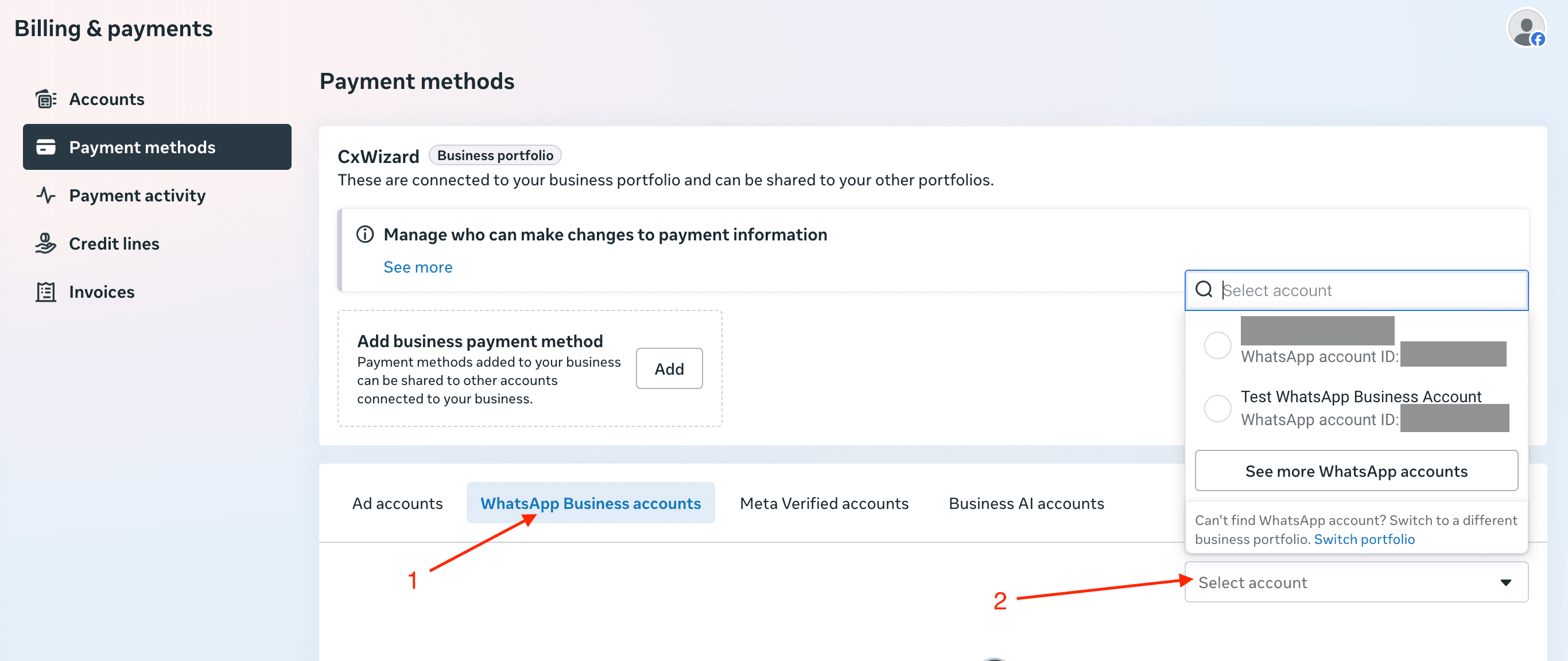
Meta bills WhatsApp message delivery to the payment method on your WhatsApp Business account, not to your CXWizard subscription. Starting October 1, 2026, Meta will also charge for service messages (AI replies and inbox replies inside the 24-hour customer service window). You need a valid card on that account before then so message delivery is not interrupted.
This guide walks through adding a payment method in Meta Business Manager. For how marketing, utility, and service pricing works, see Understanding WhatsApp API's Per-Message Pricing.
Before you start
Make sure you have:
- Admin access to the Meta Business Portfolio that owns the WhatsApp Business account
- Permission to manage billing and payments for that portfolio
- A credit or debit card you can use for Meta billing
Step 1: Open Billing & payments in Meta Business Manager
- Sign in to Meta with the Facebook account that has access to your business portfolio.
- Open the Billing & payments → Payment methods page. Visit this link: https://business.facebook.com/latest/billing_hub/payment_methods
You should see Payment methods for your business portfolio.
Step 2: Select WhatsApp Business accounts
On the Payment methods page, find the account type tabs under the business portfolio section. Click WhatsApp Business accounts.
Then open the Select account dropdown on the right and choose the WhatsApp Business account you want to add a payment method to. If you manage more than one account, pick the one connected to CXWizard.
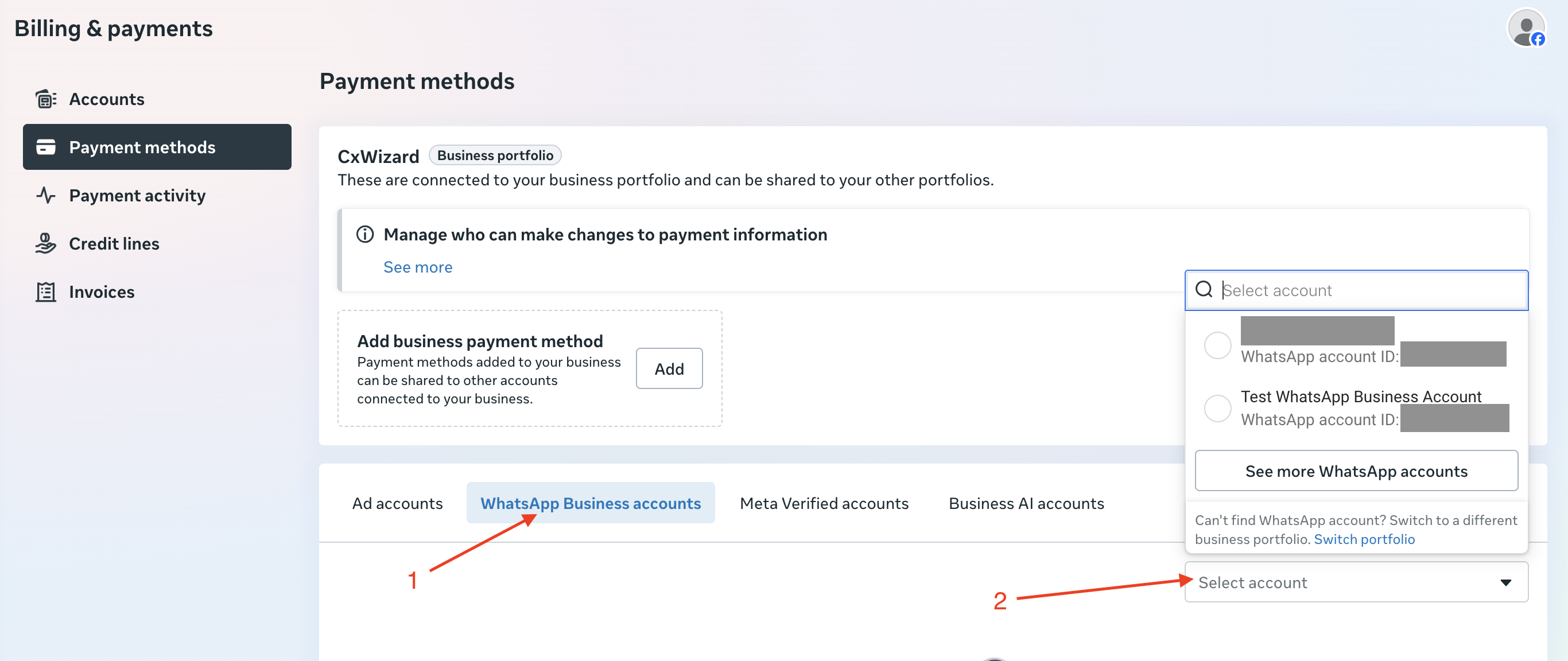
If you do not see the account, confirm you are in the correct business portfolio. Meta shows a link to switch portfolios when the account is under a different one.
Step 3: Add a payment method
After you select the WhatsApp Business account:
- Click the blue Add payment method button.
- Enter your card details in the form Meta shows.
- Save the payment method.
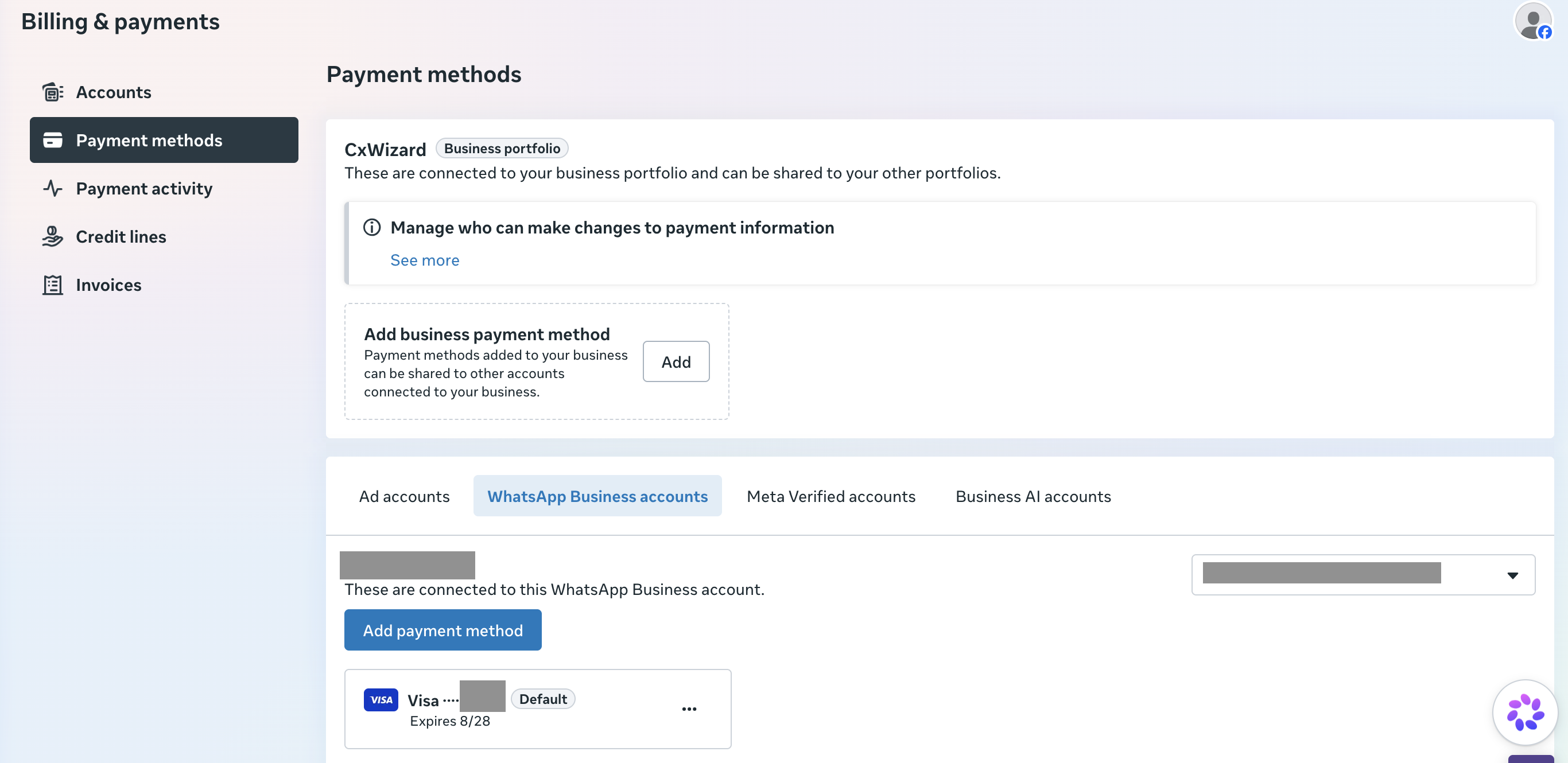
Once saved, the card appears under that WhatsApp Business account. You can mark a card as default and manage it from the same screen using the options menu on the payment method row.
What this payment method is for
This card is used by Meta for WhatsApp Business Platform charges, such as:
- Marketing template messages
- Utility template messages (when billable)
- Service messages after October 1, 2026 (AI and inbox replies)
It is separate from what you pay CXWizard for your subscription. CXWizard does not charge Meta's per-message fees on your behalf.
Tips
- Add the payment method on the same WhatsApp Business account you connected in CXWizard.
- If message delivery fails after October 1, 2026, check this page first for an expired card or missing payment method.
- Keep the card current before high-volume campaigns so Meta can process charges without interrupting deliveries.
Related tutorials
- Understanding WhatsApp API's Per-Message Pricing: Learn marketing, utility, and service pricing, free entry point windows, and cost examples after October 1, 2026.
- How to Connect Your WhatsApp Business Account to CXWizard: Connect WhatsApp to CXWizard.
- How to Migrate Your WhatsApp Business Account to CXWizard: Move an existing API number to CXWizard.