How to Set Up IG Comment DM Automation for Free (No Need for ManyChat)
Use Meta Business Suite inbox automation to send Instagram DMs when someone comments with a keyword, free and with no ManyChat. Then let CXWizard AI handle the replies.
ManyChat is popular for comment-to-DM flows on Instagram, but you do not need a paid chatbot tool for the basics. Meta already includes this automation in Meta Business Suite Inbox at no extra cost.
You can:
- Detect comments that contain specific keywords (for example
PRICE,INFO, orLINK) - Optionally reply publicly on the comment
- Send a private Instagram DM with your offer, link, or next step, including media and personalization variables like the commenter’s name
Then connect Instagram to CXWizard so when people reply to that DM, your AI agent can answer FAQs, qualify leads, and escalate to your team.
This guide walks through the free Meta setup, then how to hand the conversation off to CXWizard.
Before you start
Make sure you have:
- An Instagram professional account (Business or Creator) linked to a Facebook Page in a Meta Business Portfolio
- Admin (or equivalent) access to that portfolio in Meta Business Suite
- Permission to manage Inbox automations for the Page / Instagram account
- Optional but recommended: a CXWizard account so replies to the automated DM can be handled by an AI agent
Step 1: Open the Comment to inbox automation
Meta provides a ready-made template. Open it directly:
Create Comment to inbox automation
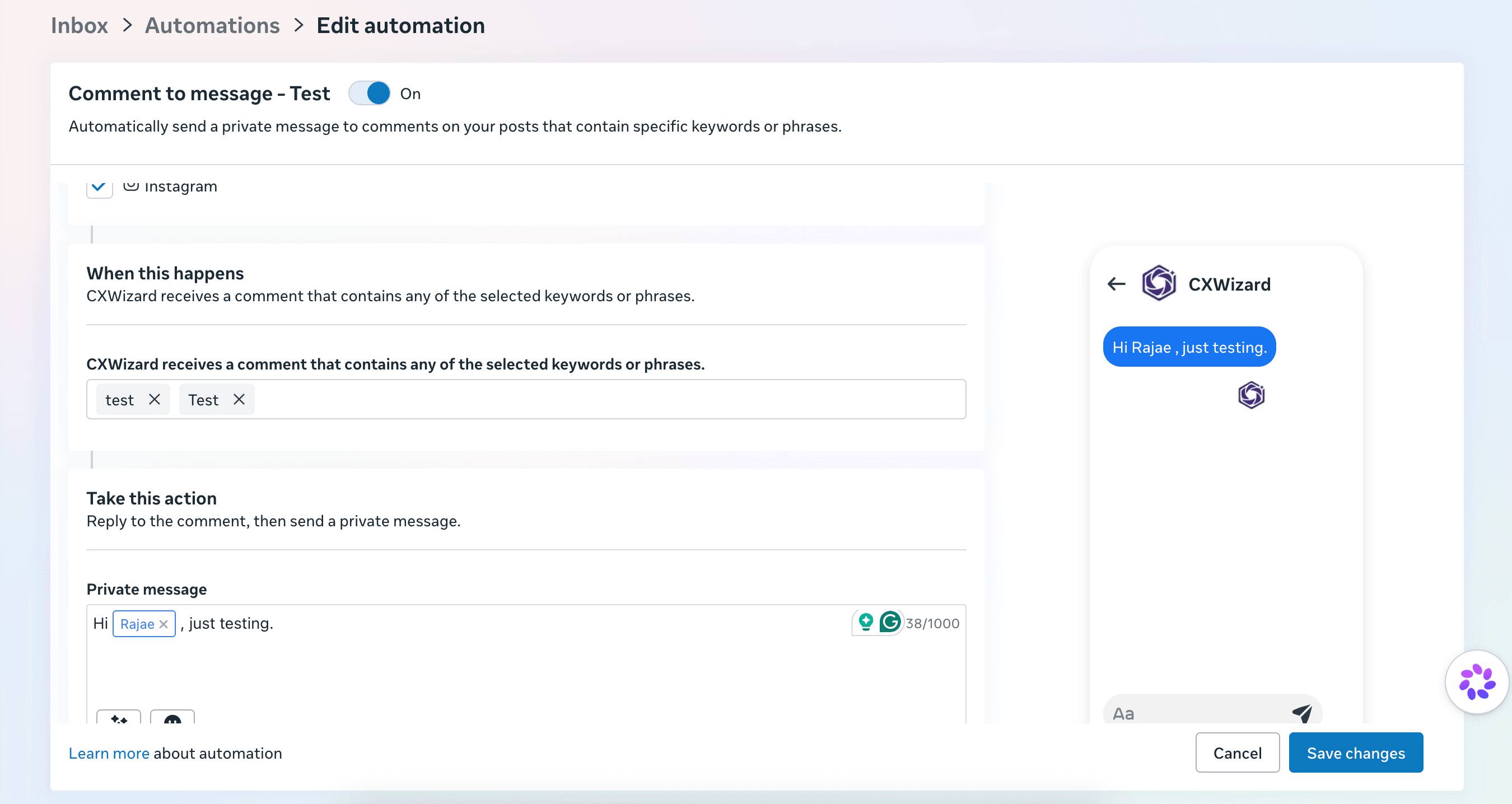
Sign in with the Facebook account that manages your business portfolio if prompted. You should land on Inbox → Automations with the Comment to message template ready to edit.
If the link does not open the template, go to Meta Business Suite → Inbox → Automations (https://business.facebook.com/latest/inbox/automated_responses), then choose the "Comment to Message" automation.
Step 2: Name the automation and turn it on
Give the automation a clear name so your team recognizes it later, for example Comment to message - Product launch or Comment to DM - Price keywords.
Use the On / Off toggle to enable the automation when you are ready. You can leave it off while drafting, then switch it on after you save.
Under channels, select Instagram (and Messenger if you also want the same keyword flow on Facebook posts). For Instagram comment-to-DM, Instagram must be checked.
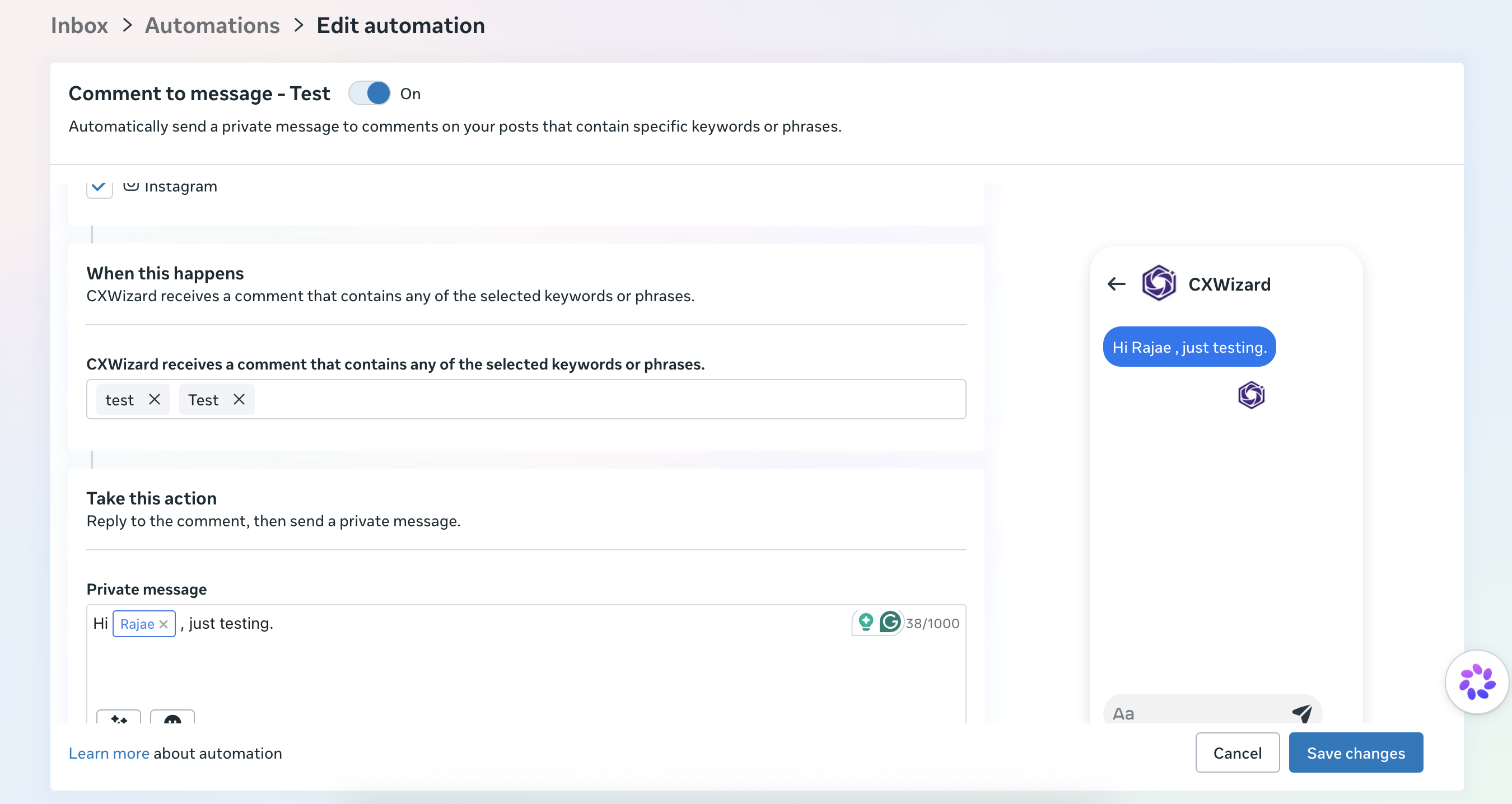
Step 3: Choose keywords (up to 10)
In the When this happens section, Meta triggers when a comment contains any of the keywords or phrases you select.
Add the words or short phrases people already use on your posts. For example:
price/pricinginfo/detailslinkdemointerested
You can add up to 10 keywords or phrases. Include common casing variants if needed (for example both test and Test), or rely on Meta’s matching behavior for your account. Always test with a real comment after you publish.
Keep keywords specific enough that random comments do not fire the DM, but simple enough that followers will actually type them. Many brands put the exact keyword in the post caption (“Comment PRICE for details”).
Step 4: Set the comment reply and the private DM
In Take this action, configure:
Public comment reply (optional but useful)
Meta can reply to the comment first (for example thanking them and telling them to check their DMs), then send the private message. A short public reply builds social proof on the post while the real offer stays in the DM.
Private message (the DM)
Compose the message that goes to the commenter’s Instagram inbox. You can typically:
- Write up to the character limit shown in the editor (often up to 1000 characters)
- Insert personalization / special variables such as the user’s name so the DM feels personal (for example
Hi [First name], …) - Attach media (images or other supported assets) when you want a product shot, price card, or carousel-style creative in the first message
Write a clear next step: a link, a question (“What are you looking for?”), or an invitation to reply with more details. That reply is what your CXWizard AI agent will handle in the next section.
Use the mobile preview on the right to check how the DM will look before you save.
Step 5: Save and test the automation
Click Save changes, confirm the automation is On, then test from a secondary Instagram account (or ask a teammate):
- Comment one of your keywords on a post covered by the automation
- Confirm any public reply appears
- Confirm the private DM arrives with the correct text, variables, and media
If nothing happens, check that Instagram is selected as a channel, the automation toggle is on, keywords match the comment text, and you are testing on a post from the connected Instagram account.
Step 6: Let CXWizard AI handle Instagram DM replies
Meta’s free automation is excellent for the first DM. It is not a full AI sales or support agent. When someone replies asking about pricing, shipping, availability, or booking, you want a system that can answer from your FAQs, qualify the lead, and escalate when needed.
That is where CXWizard fits:
- Sign up or log in to CXWizard
- Create or refine an AI agent with a clear prompt (tone, what to sell or support, when to escalate). See Getting Started with CXWizard.
- Add FAQs, docs, or website content in the Knowledge Base so the agent can answer product and policy questions accurately.
- Connect Instagram from Integrations (Instagram Messenger) so DMs land in your CXWizard inbox.
- Enable the agent so it can reply to Instagram DMs automatically, including conversations that started from your comment-to-DM automation.
Your funnel becomes:
Instagram comment (keyword) → free Meta DM → customer replies → CXWizard AI qualifies / answers / escalates
You keep the capture step free in Meta Business Suite, and use CXWizard where AI actually matters: ongoing conversation, FAQs, lead qualification, and human handoff. For inbox routing when a human is needed, see How to Let AI Manage Your Inbox in CXWizard.
Why this beats paying ManyChat just for comment-to-DM
| Need | Meta Business Suite | ManyChat | CXWizard |
|---|---|---|---|
| Keyword comment → private DM | Included (free) | Paid plans / contact tiers | Not required for the first DM |
| Comment reply + personalized DM + media | Supported in Inbox automations | Strong flow builder | Use Meta for the first touch |
| AI that answers FAQs and qualifies leads in DMs | Limited | Flow / rules oriented | Built for AI agents on Instagram DMs |
| Shared inbox + human escalation | Meta Inbox | In-product inbox | CXWizard shared inbox |
If you only needed ManyChat for “comment KEYWORD to get a DM,” Meta’s automation covers that. Use CXWizard when you want the follow-up conversation handled by an AI agent instead of a rigid flow.
For a broader tooling comparison, see ManyChat Alternatives (2026).
Tips
- Put the exact keyword in your caption or Reel text so comments match reliably.
- Keep the first DM short; ask one clarifying question so CXWizard has something concrete to work with.
- Use name personalization sparingly and always proofread the preview, since awkward tags hurt trust.
- Revisit keywords after a campaign: retire noisy words and keep the ones that convert.
- Train the CXWizard agent on the same offer (pricing, links, eligibility) you mention in the automated DM so replies stay consistent.
Related tutorials
- Getting Started with CXWizard: Create an agent, build a knowledge base, and connect Instagram.
- How to Let AI Manage Your Inbox in CXWizard: Tag and assign chats when the AI escalates to your team.
- What Is a Multi-Channel AI Inbox?: How WhatsApp, Instagram, and web chat work in one inbox.
- ManyChat Alternatives (2026): Compare messaging automation options if you are evaluating beyond Meta’s free tools.