How to Let AI Manage Your Inbox in CXWizard
Configure your AI agent to automatically tag conversations and assign escalated chats to the right team members using Team escalation settings.
When your AI agent handles customer conversations, some chats eventually need a human. CXWizard can take that handoff further: the AI can tag the conversation so your team knows what it is about, assign it to the right teammate, and escalate — all before anyone opens the inbox.
This guide walks through Team escalation settings on the agent form: how to turn them on, choose between Roundrobin and Tag based assignment, and write tag descriptions the AI actually uses.
Before you start
Make sure you have:
- At least one AI agent — Create or edit an agent from your dashboard.
- Team members besides the account owner — Team escalation assigns chats to invited teammates. If you have not added anyone yet, follow How to Add Team Members to CXWizard first.
- A paid plan with team access — Team members are not available on the Hobby plan. Upgrade if you see a prompt to invite teammates or upgrade when configuring escalation.
Step 1: Open Team escalation settings
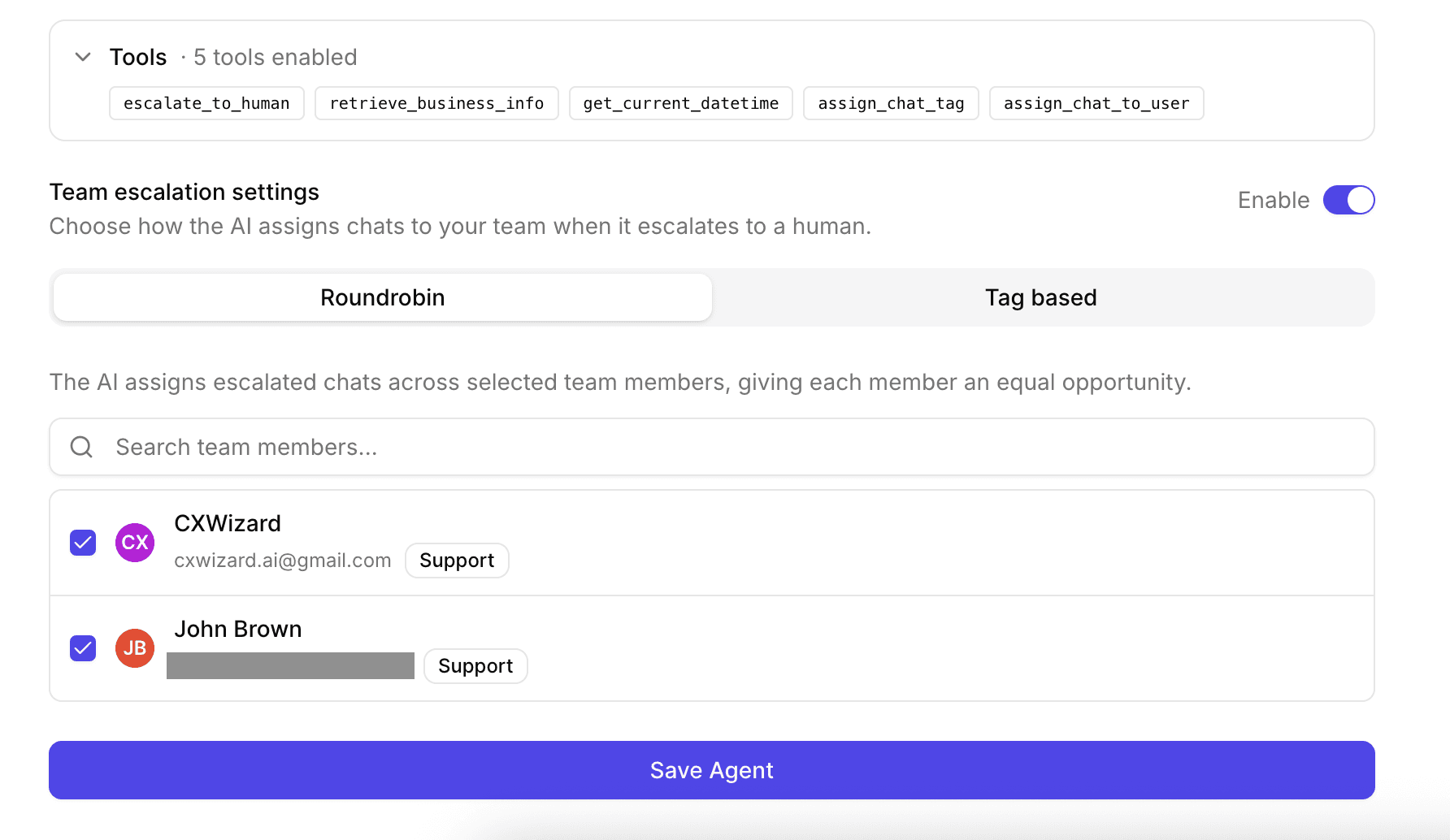
When creating or editing an agent, scroll to the bottom of the form — just above the save button. You will see Team escalation settings with an Enable toggle.
Turn the toggle on to let the AI assign escalated chats to your team. Turn it off if you only want the AI to escalate without automatic teammate assignment.
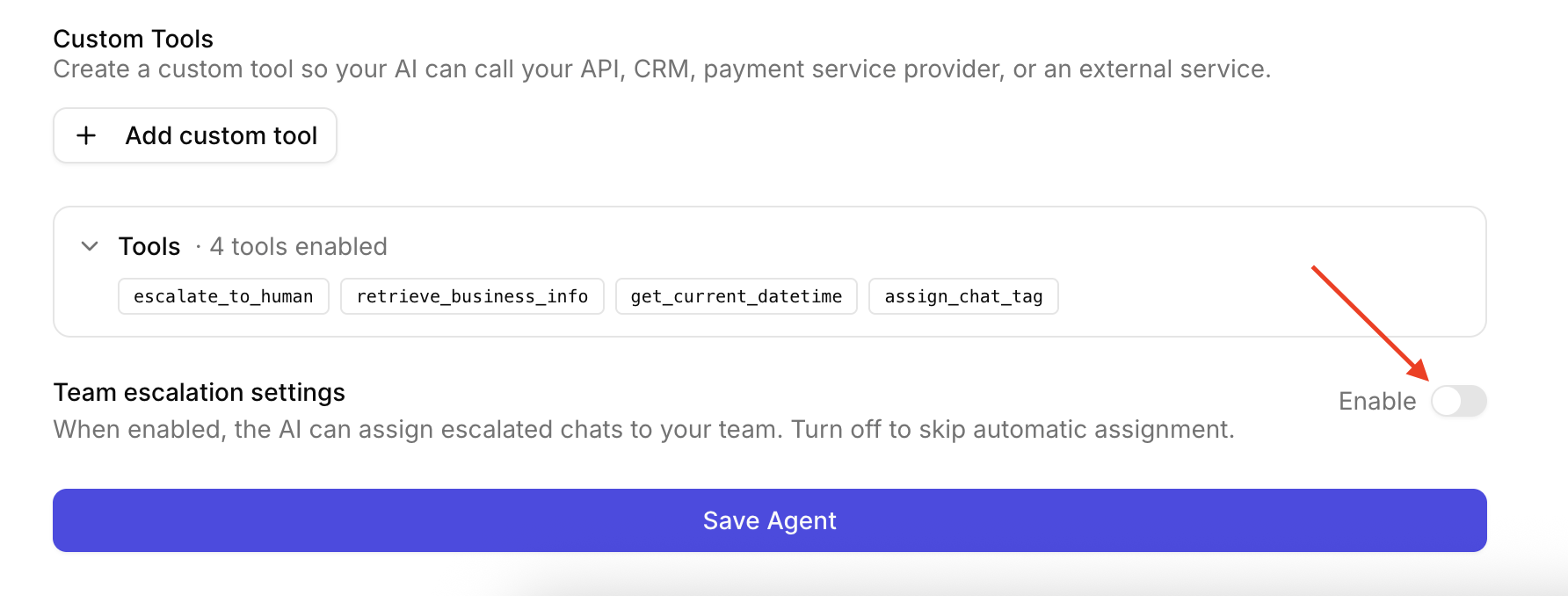
When enabled, your agent gains the assign_chat_to_user system tool. The AI uses it immediately before escalating to assign an appropriate teammate to the chat.
When disabled, the AI still escalates with the escalate_to_human system tool, but it will not assign a teammate automatically.
Step 2: Choose how chats are assigned
With Team escalation settings enabled, choose one of two modes: Roundrobin or Tag based.
Roundrobin
Roundrobin is the simplest option. Select the team members who should receive escalated chats, and the AI distributes assignments evenly among them over time. Each member gets an equal opportunity.
Use Roundrobin when:
- Any teammate can handle most escalations
- You do not need to route by topic or department
- You want a fair, rotating workload across support staff
How to configure Roundrobin:
- Open the Roundrobin tab under Team escalation settings.
- Search and select one or more team members.
- Save the agent.
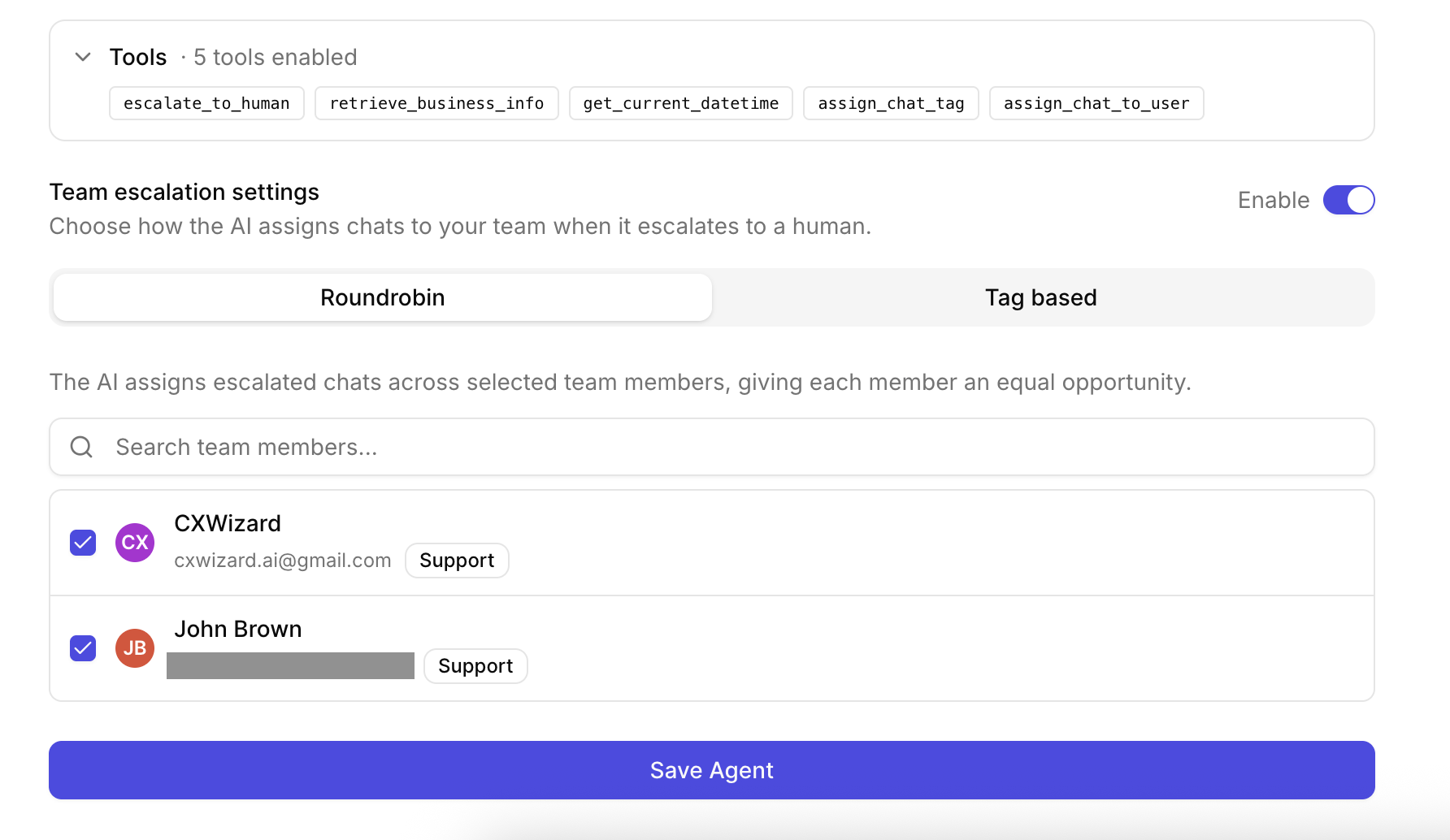
When a chat is escalated, the AI picks the next available member from your list and assigns the conversation before handing it off.
Tag based
Tag based escalation routes chats by department or function. You create chat tags (for example, Billing, Shipping, Sales), map each tag to specific team members, and the AI applies the right tag and assigns the right people when it escalates.
Use Tag based when:
- Different teammates own different areas (billing vs. technical support vs. sales)
- You want the inbox organized by topic before a human replies
- You need smarter routing than a single shared queue
Tag-based escalation works in two parts: creating tags with descriptions, then creating escalation rules.
Part A: Create tags for departments or functions
Tags represent the categories you want the AI to recognize — often aligned with how your team is organized.
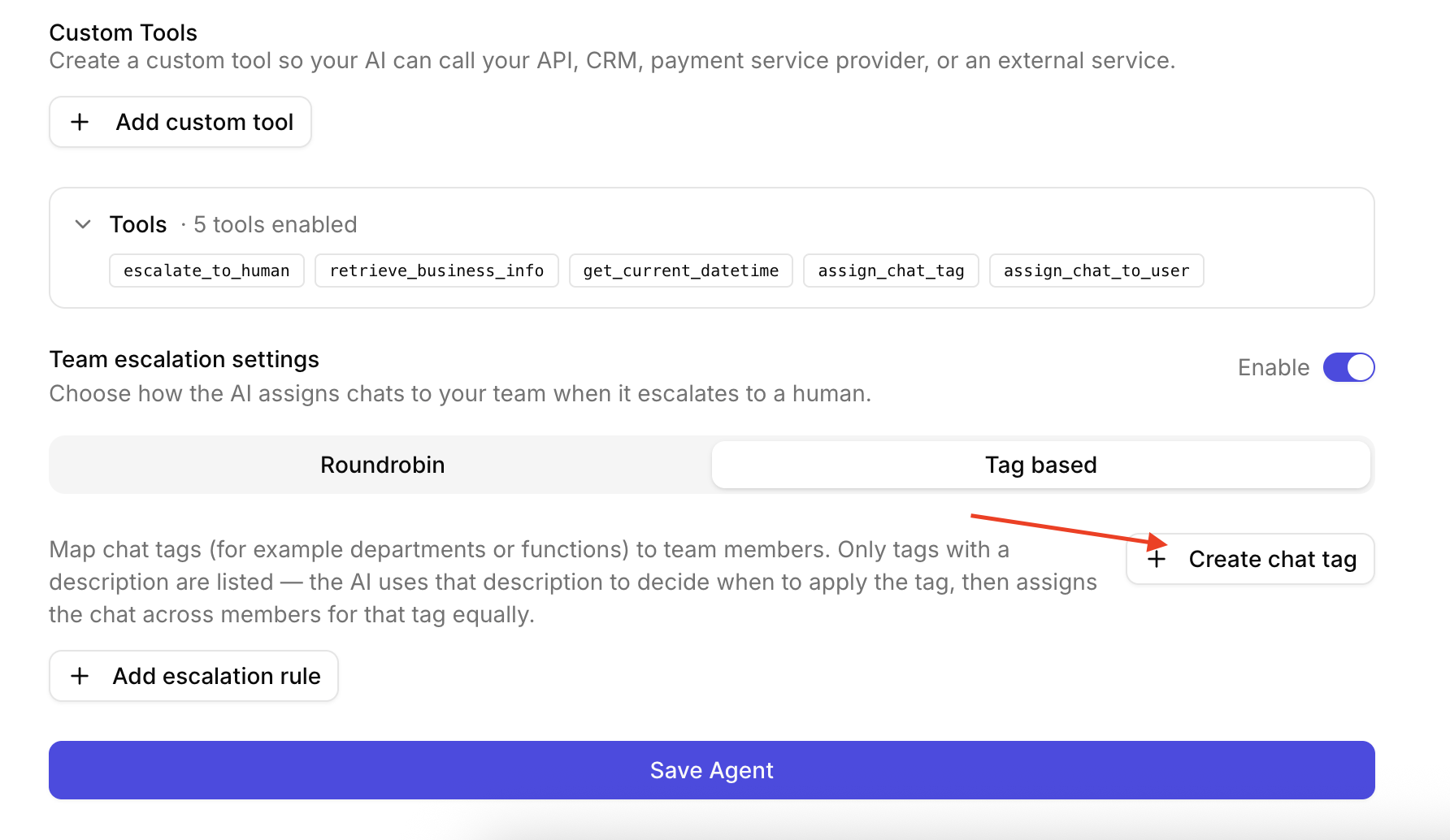
- In the agent form, under Team escalation settings, open the Tag based tab.
- Click Create chat tag.
- In the modal, fill in:
- Tag name — A short label your team will recognize (for example,
Billing,Returns, orSales). - Description — Instructions for the AI on when to apply this tag. This field is required when creating a tag from here.
- Color — A color to distinguish the tag in your inbox.
- Tag name — A short label your team will recognize (for example,
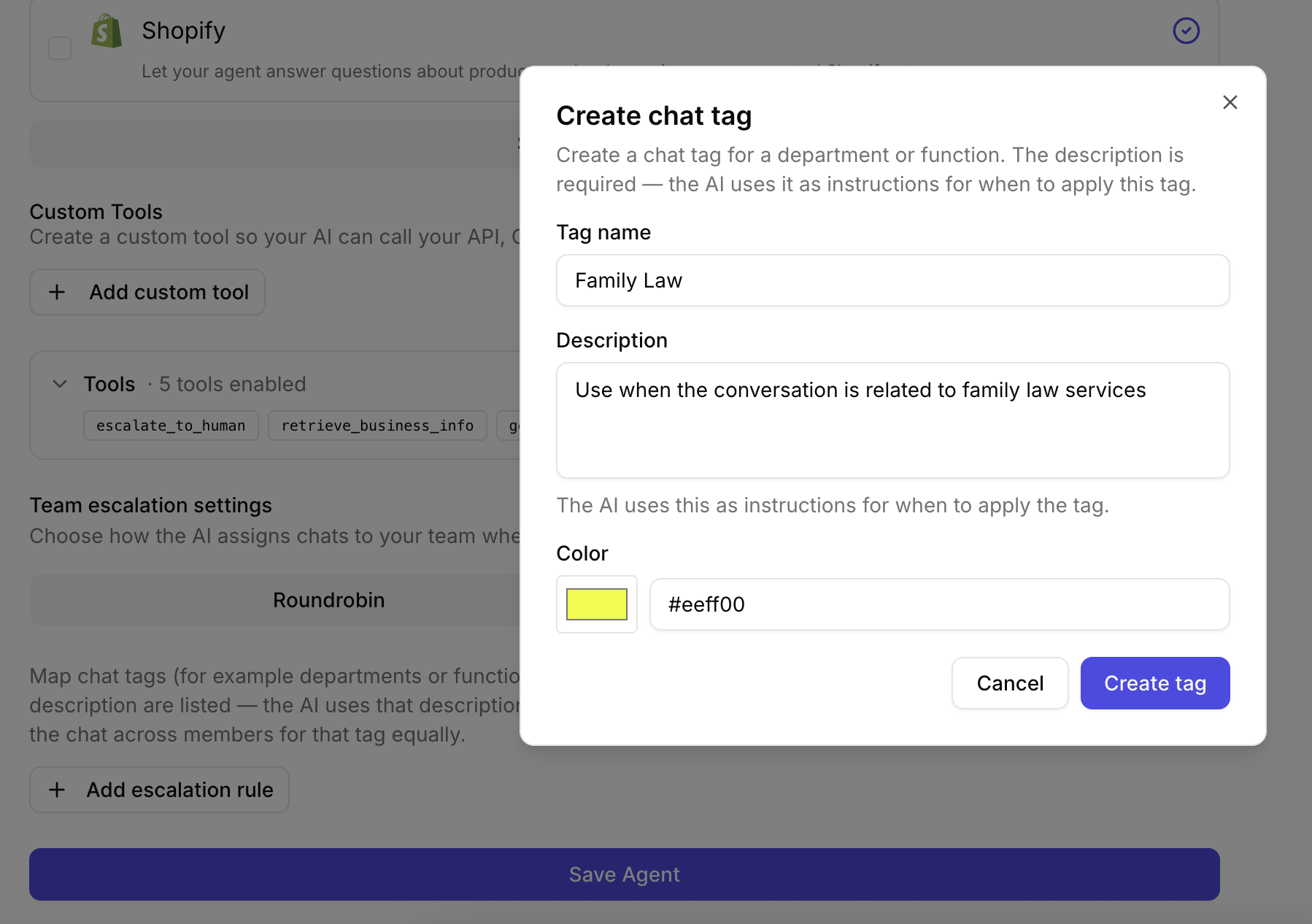
Example tags by department or function:
| Tag name | Description (for the AI) |
|---|---|
| Billing | Use when the customer asks about invoices, payments, refunds, or subscription charges. |
| Shipping | Use when the conversation is about delivery status, tracking, or shipping delays. |
| Sales | Use when the customer asks about pricing, plans, demos, or wants to speak with sales. |
| Technical | Use when the customer reports a bug, integration issue, or product malfunction. |
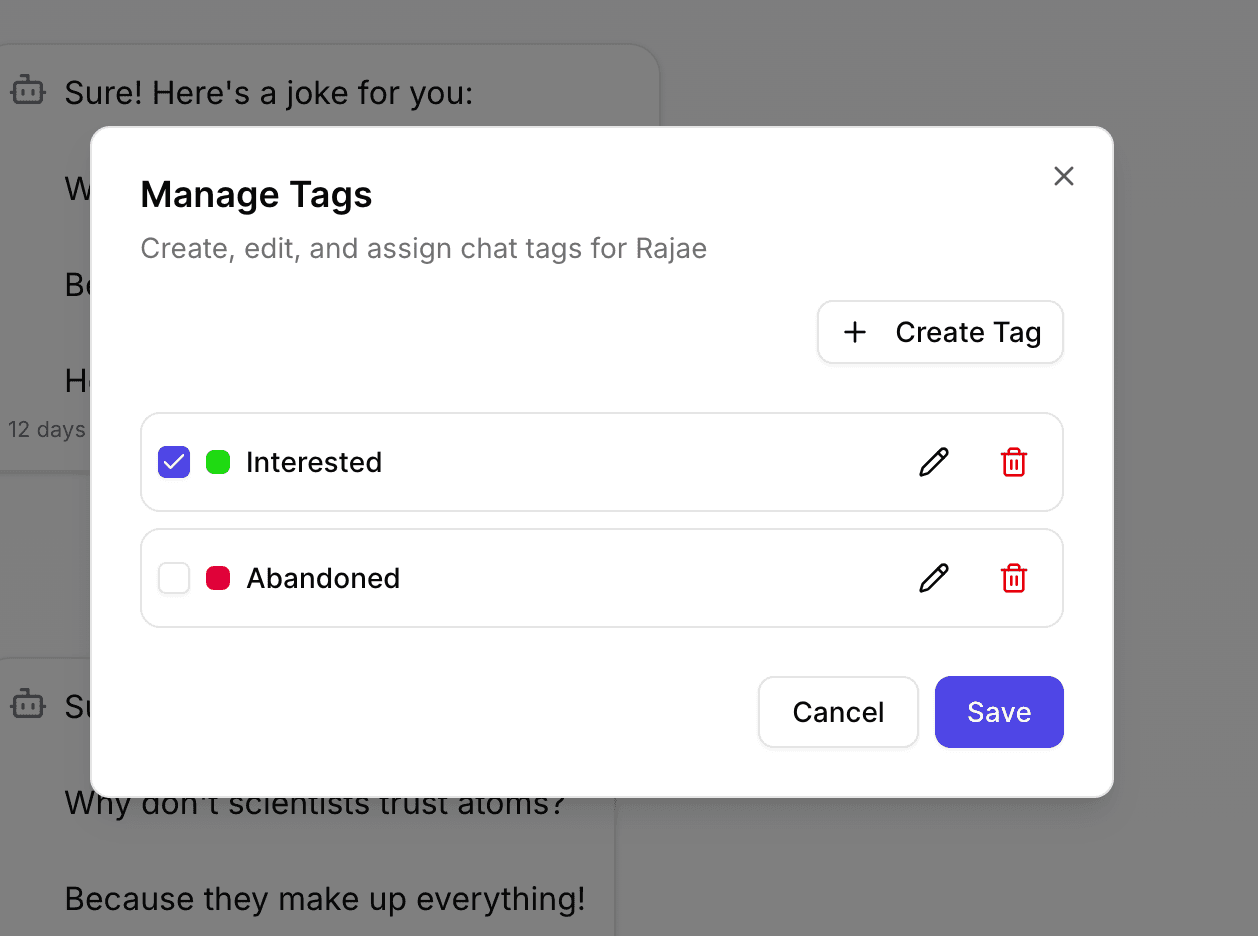
You can also create tags from the inbox. For tag-based escalation, only tags with a description appear in the escalation rule list.
Part B: Create escalation rules
An escalation rule connects one tag to one or more team members who should handle those conversations.
- Stay on the Tag based tab.
- Click Add escalation rule.
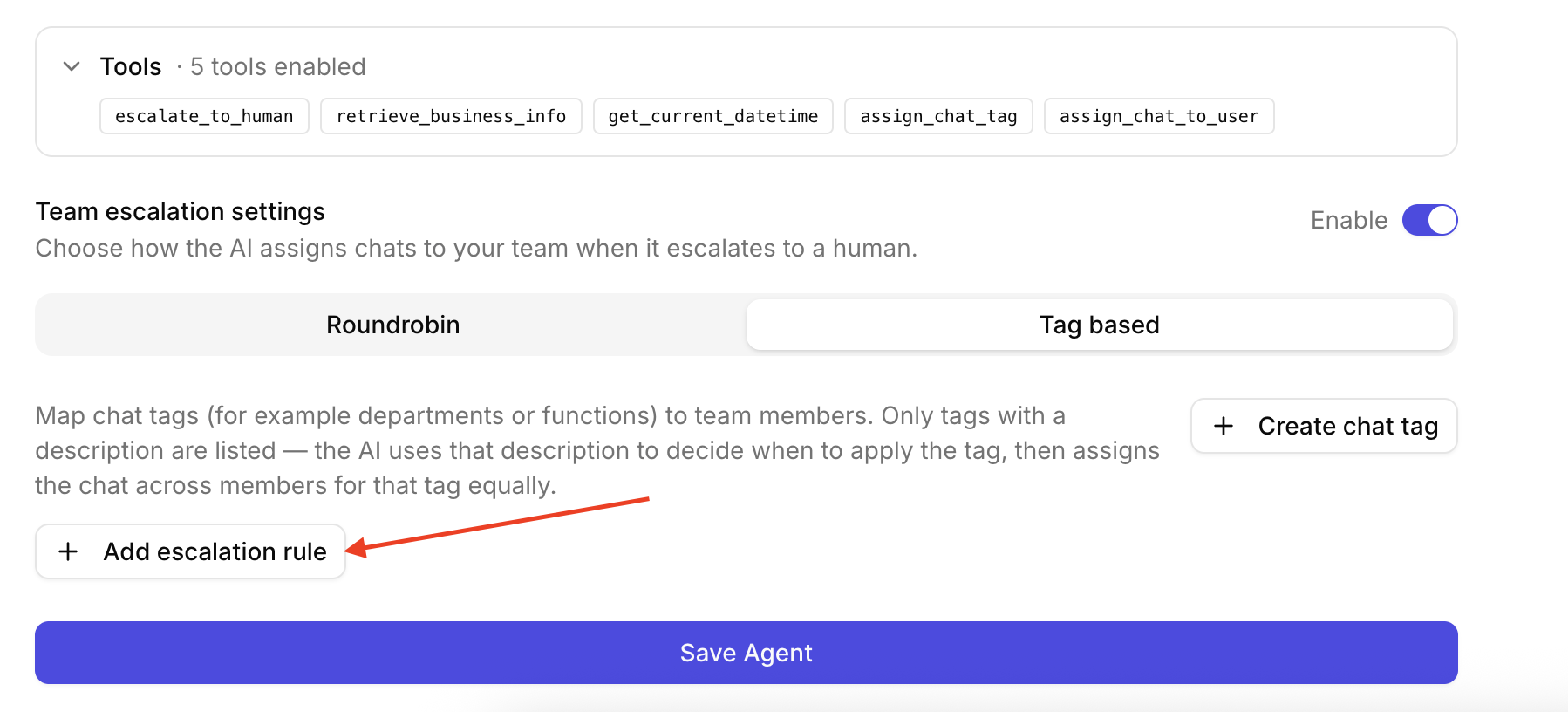
- For each rule:
- Select a chat tag — Choose a tag you created (only tags with descriptions are eligible).
- Select team members — Pick who should receive escalated chats for that tag. Assignments within a rule are distributed evenly across the selected members, similar to Roundrobin but scoped to that tag.
- Add more rules as needed — one per department or function.
- Save the agent.
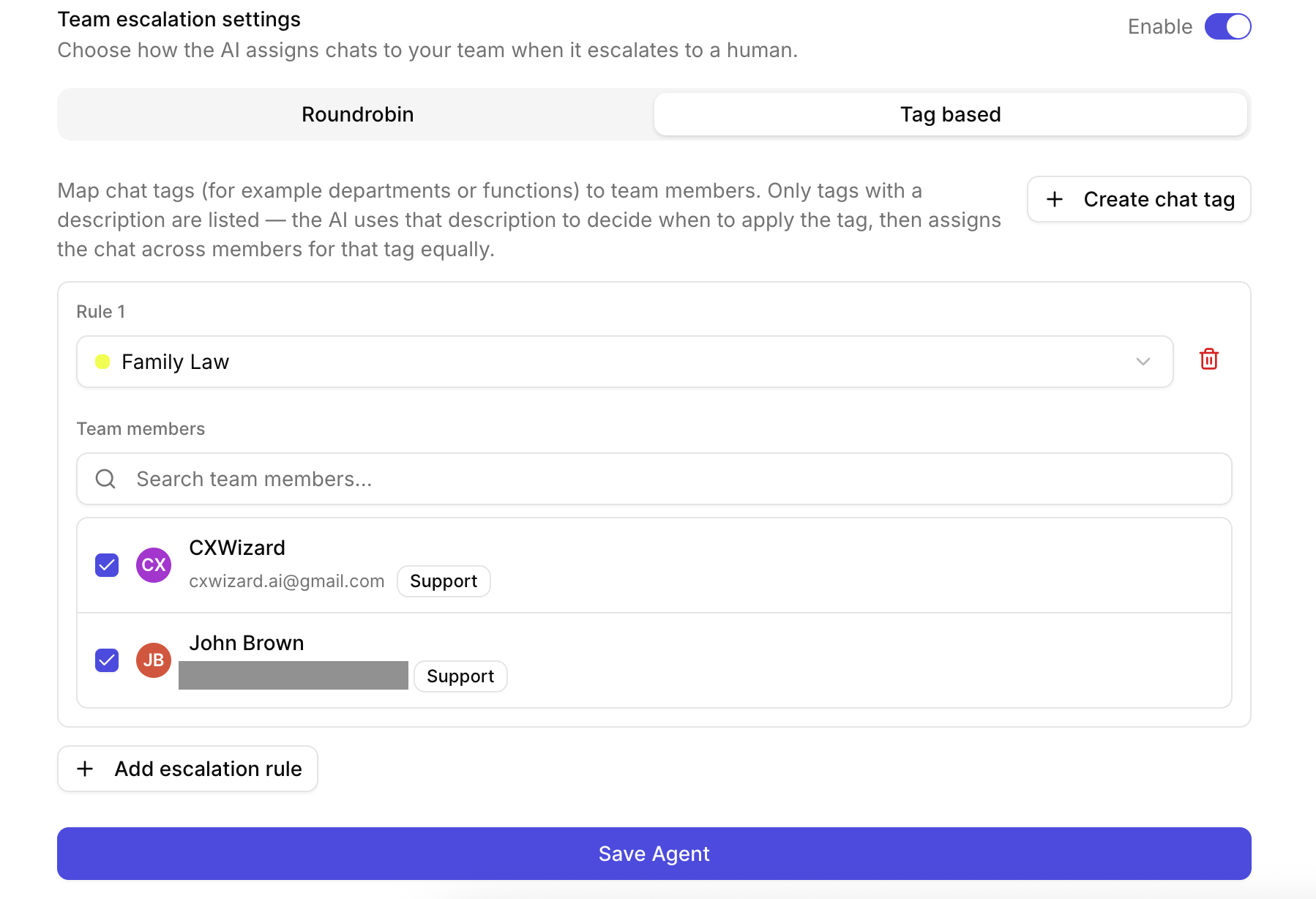
Example setup:
- Billing tag → Finance team members Alice and Bob
- Shipping tag → Operations team member Carol
- Sales tag → Sales team members Dan and Eve
When the AI escalates a billing question, it applies the Billing tag, assigns Alice or Bob, then escalates. Your inbox shows the tag and assignee immediately.
Why tag descriptions matter
Tag descriptions are not just notes for your team — they are instructions for the AI.
When you add a description to a tag, CXWizard exposes the assign_chat_tag system tool to your agent. Before escalating, the AI reads each tag’s description and decides which tag fits the conversation.
If a tag has no description, the AI will not consider it. Those tags are hidden from tag-based escalation rules and are not used for automatic tagging. This keeps the AI from guessing when a tag should apply or if you deliberately intended to only apply the tag manually.
Write descriptions that are:
- Specific — Describe the scenarios, keywords, or customer intents that belong to the tag.
- Action-oriented — Start with phrasing like “Use when…” so the AI treats them as clear rules.
- Distinct — Avoid overlap between tags so the AI can choose one confidently.
Good description:
Use when the customer asks about invoices, payment failures, refunds, or changes to their subscription billing.
Weak description:
Billing stuff.
The stronger example gives the AI concrete signals. The weak one is too vague to route reliably.
If you already have tags without descriptions, edit them in the inbox (How to Create and Manage Chat Tags) and add descriptions before using them in escalation rules.
What the AI does when escalating
When a conversation needs a human, your agent follows a short workflow:
- Tag the chat (tag-based mode only) — If you use tag-based escalation, the AI calls the
assign_chat_tagsystem tool to apply the tag that best matches the conversation (for example, Billing or Sales). - Assign a team member — When Team escalation settings are enabled, the AI calls
assign_chat_to_userto assign the chat to a teammate based on your rules. The assigned teammate will received an email notification. - Escalate to a human — The AI calls
escalate_to_human, collects contact details if needed, and hands the conversation off to your team.
You configure steps 1 and 2 in the agent editor. Escalation itself is always available to your agent.
Tips for better results
- Invite teammates before configuring escalation — Assignment requires at least one invited team member besides the account owner.
- Match tags to how your team actually works — One tag per clear department or function reduces misrouting.
- Keep descriptions updated — When you add a new product line or support area, add or update tags and rules.
- Combine with your agent prompt — Team escalation handles routing; your prompt still controls tone, what to collect before escalating, and when escalation is appropriate.
Related tutorials
- How to Add Team Members to CXWizard: Invite teammates and manually assign chats from the inbox.
- How to Create and Manage Chat Tags in CXWizard: Create, assign, and filter chats by tag.
- Getting Started with CXWizard: Set up your AI agent, connect channels, and start managing customer conversations.